Managing custom links
Custom links let you add your own shortcuts to the shared header of Bizzkit products, for example to an internal wiki, a support portal, or your online store. You manage them on the Links page in Bizzkit Start.
Open the links page
The Links page is the start page of Bizzkit Start. You can always return to it by selecting Links in the side menu.
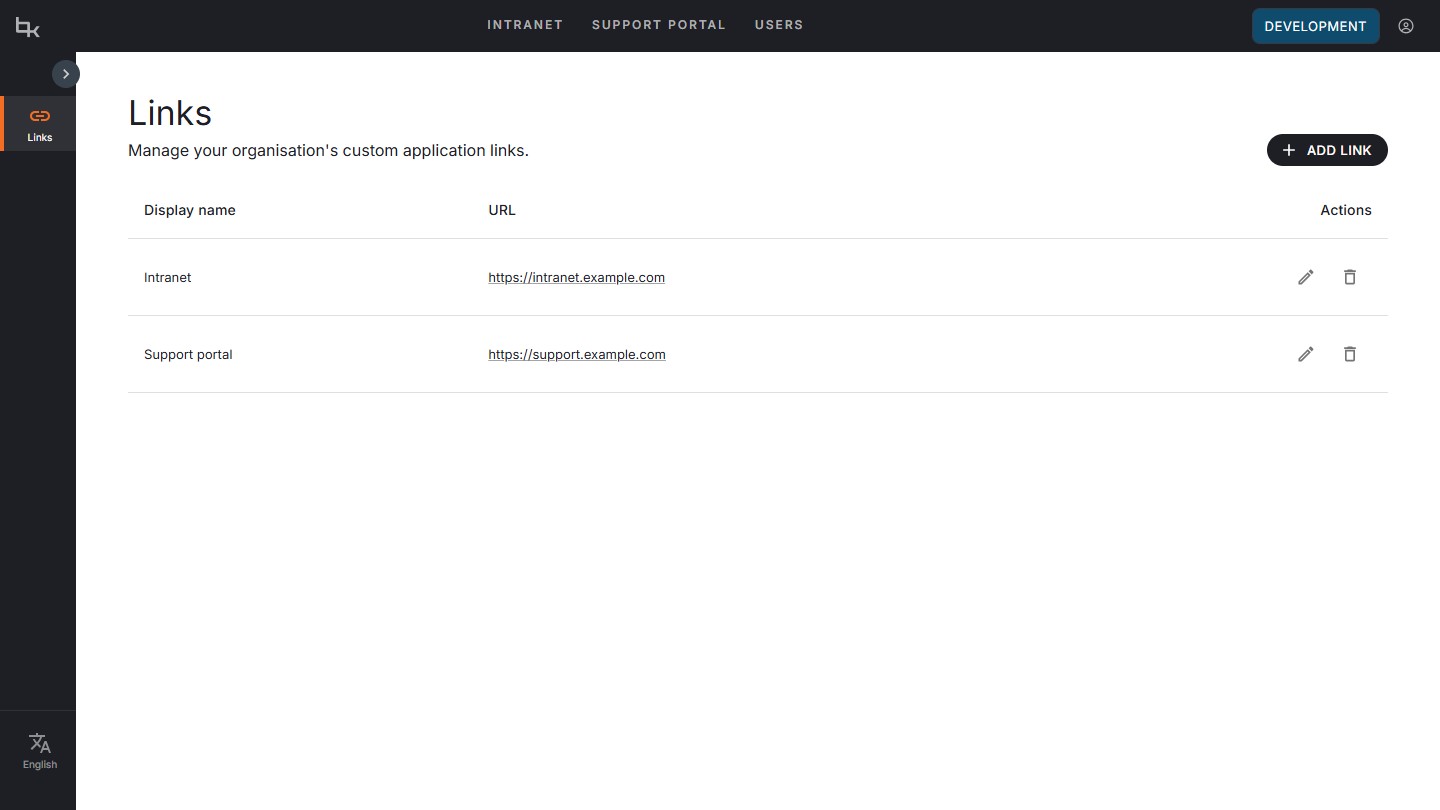
The page lists your custom links in a table with the following columns:
| Column | Description |
|---|---|
| Display name | The text shown for the link in the header. |
| URL | The address the link points to. Selecting the URL opens it in a new tab. |
| Actions | The Edit and Delete icons for the link. |
If no custom links have been added, the table shows the message "No links have been added yet."
Who can manage links
Any signed-in user can add, edit, and delete custom links.
Warning
Custom links are shared across your whole organization. Any change you make on the Links page applies to the shared header of Bizzkit products for all users.
Add a link
- Select Add link.
- In the Add link dialog, fill in the fields:
- Display name: The text shown in the header. This field is required and can be at most 25 characters.
- URL: The address the link points to. This field is required and must be an absolute URL that starts with
http://orhttps://. - Open link in: Choose Same window or New tab. The default is New tab.
- Select Create to add the link, or Cancel to close the dialog without saving.
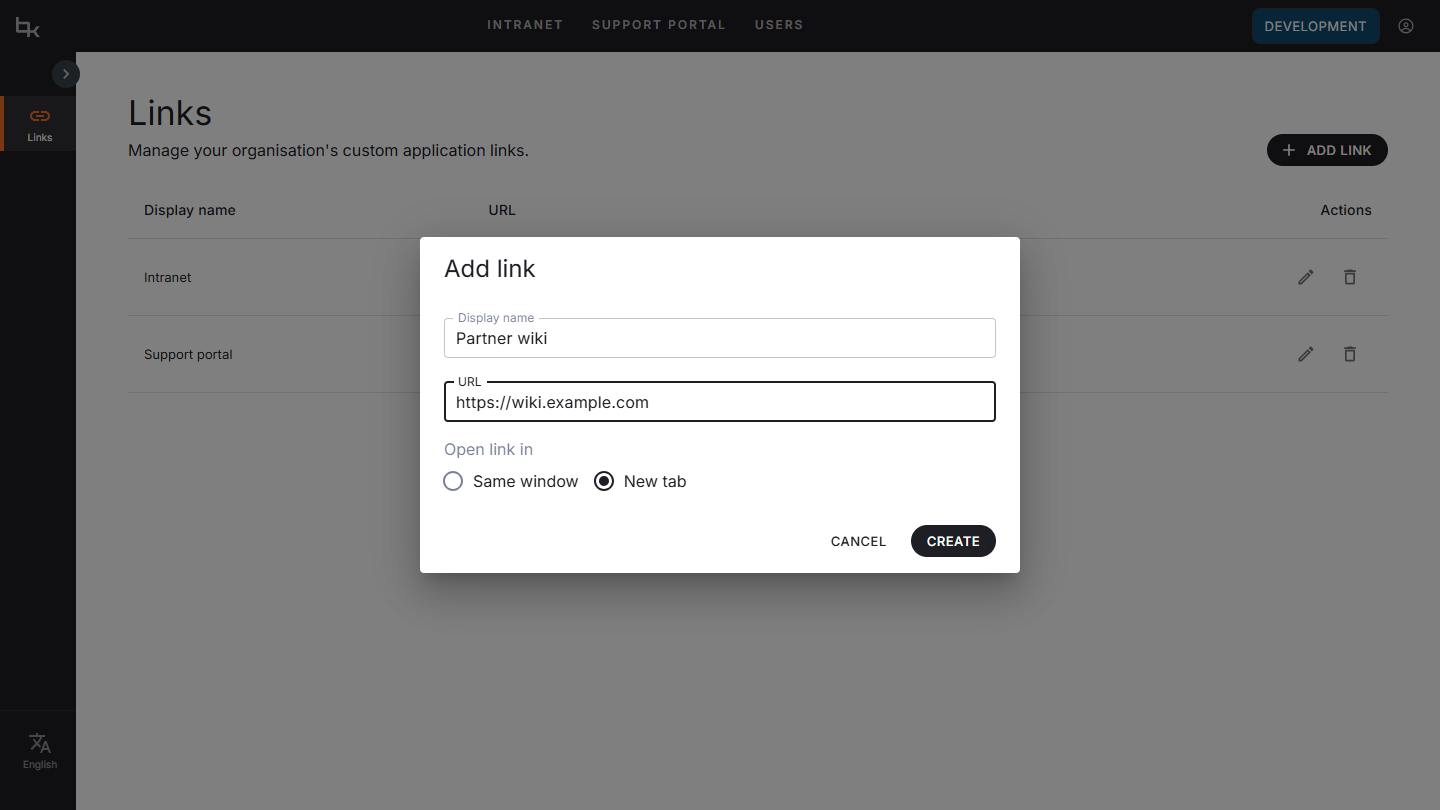
If a field is not valid, the dialog shows one of the following messages:
| Message | Reason |
|---|---|
| Display name is required. | The Display name field is empty. |
| Display name must be at most 25 characters. | The display name is longer than 25 characters. |
| URL is required. | The URL field is empty. |
| Enter a valid URL starting with http:// or https://. | The URL is not an absolute URL, or it does not use http:// or https://. |
Edit a link
- Select the Edit icon on the row of the link you want to change.
- In the Edit link dialog, update Display name, URL, or Open link in. The same rules apply as when you add a link.
- Select Save to apply the changes, or Cancel to close the dialog without saving.
Delete a link
- Select the Delete icon on the row of the link you want to remove.
- The Delete link dialog asks "Are you sure you want to delete this link?"
- Select Delete to remove the link, or Cancel to keep it.
Where links appear
Custom links appear at the start of the shared header navigation of Bizzkit products, before the links to the Bizzkit products enabled for your organization. CMS and Content don't show custom links yet.
Custom links are shown in the order they were added, so a new link is always placed after your existing custom links. You can't change the order of links on the Links page.
Note
If a custom link has the same display name as a Bizzkit product, for example Search or Media, it's placed among the product links instead of first. Use a display name that is different from the product names.
The Open link in setting controls what happens when a user selects the link in the header:
- New tab: The link opens in a new browser tab, and the Bizzkit product stays open in the current tab. This is a good choice for external sites.
- Same window: The link replaces the current page in the same browser tab.