Trends
Trends let you follow how your product data changes over time. Instead of only seeing the current state of the product catalogue, you can track a chosen product count day by day and visualise its development on a dashboard.
A trend is built from two parts:
- A trend filter — a shared product filter that Bizzkit PIM tracks once per day.
- A trend line chart widget — a dashboard widget that plots the tracked counts over a selected time range.
Trend filters
A trend filter is a shared product filter that has been opted into daily tracking. Once a filter is set as a trend filter, Bizzkit PIM records how many products match it once per day, building up a history of that count over time. This history can then be visualised on a dashboard with the trend line chart widget.
Trend filters turn a filter from a point-in-time view into a record of change over time. For example, a shared filter for products missing a meta description becomes a daily measure of how that backlog grows or shrinks as your team enriches data.
Requirements for a trend filter
Before a filter can be set as a trend filter:
- The filter must be shared. A personal filter cannot be set as a trend filter, so share it first.
- You must be the owner of the filter. The
Trendtoggle is only shown on filters you own.
A maximum of 10 trend filters can exist at a time. This is a shared limit across the whole installation, not a per-user limit. When the limit is reached, the Trend toggle is disabled and shows a Trend capacity reached message. You must remove an existing trend filter before you can add a new one.
Setting a filter as a trend filter
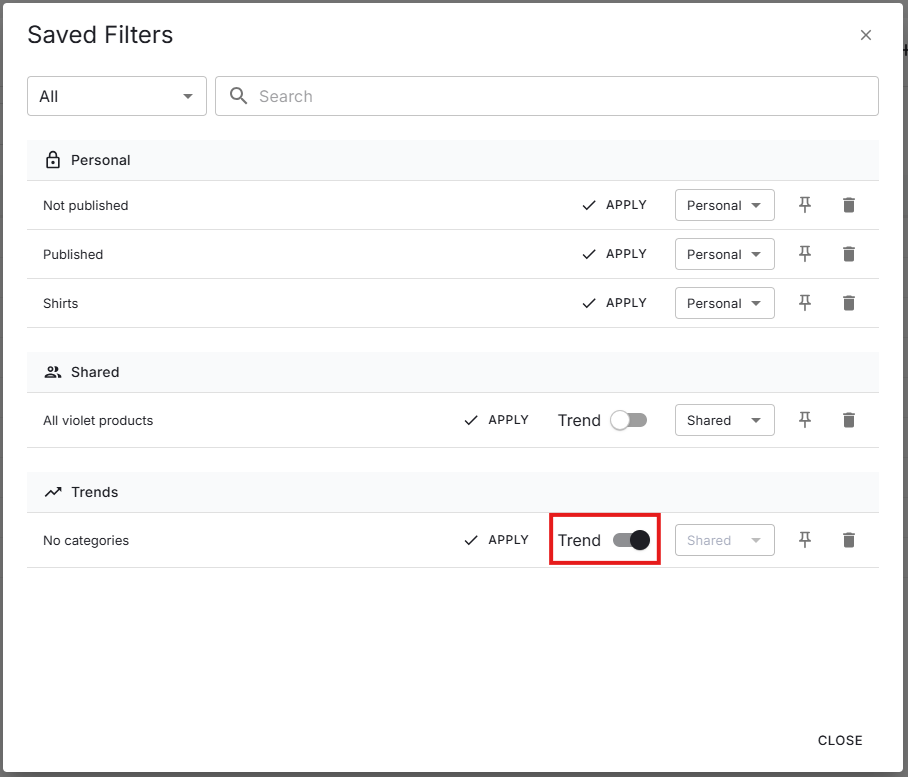
Trend filters are managed from the Saved Filters dialog on the product catalogue page. Each eligible filter row shows a Trend toggle:
- Turn the toggle on to set the filter as a trend filter. Daily tracking starts from that point onward.
- Turn the toggle off to stop tracking the filter. This removes the trend filter and its collected history.
Once a filter is set as a trend filter, it is listed under the Trend Filters category in the dialog.
How trend data is collected
- An initial snapshot is taken shortly after a trend filter is created.
- A snapshot is taken once per day for every trend filter. Each snapshot stores the number of products matching the filter at that time.
- Trend data is retained for 90 days. Snapshots older than 90 days are removed automatically, so a trend filter can only reflect up to the last 90 days of activity.
- Because data is collected gradually, a newly created trend filter has little or no history at first. The dashboard widget shows a message that no data is available yet until the first snapshots have been collected.
Note
A trend filter counts products in the same way the filter does on the product catalogue page, including within its segmentation context. For more on segment-specific behaviour, see Advanced filters.
Trend line chart widget
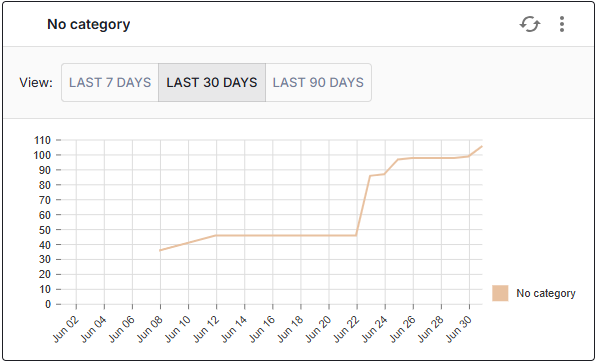
While most dashboard widgets show the current state of product data, the trend line chart widget shows how product data changes over time. It plots the daily product count of one or more trend filters as lines on a chart, with the date on the horizontal axis and the product count on the vertical axis.
This makes it easy to answer questions such as whether the number of products missing images is going down week over week, or whether a recent enrichment effort actually moved the numbers.
Configuring a trend line chart
Unlike other widget types, a trend line chart is not configured with data sets. Instead, you select one or more existing trend filters to display:
- Use
Add trendand theSelect trendsfield to add a trend filter to the widget. - Each selected trend is given a label, which describes the line in the chart. Labels must be unique within the widget.
A trend filter must already exist before it can be added to a widget. If no trend filters are available, set a shared filter as a trend filter first, as described in Setting a filter as a trend filter.
Selecting the time range
When viewing a trend line chart, users can switch the time range shown using the View selector. Three ranges are available:
- Last 7 days
- Last 30 days
- Last 90 days
The default range is the last 90 days, which matches the maximum period that trend data is retained.
Tip
Read about creating a trend line chart widget in the how-to article.