How to use dashboards
The dashboard is a robust tool designed for efficient management of product information in e-commerce contexts. It features a comprehensive user interface that simplifies the process of handling product data. For more information about dashboards see our concept article.
Its functionality is largely dependent on filters, which are detailed in the Search & Filters section, and further explained in the guide on How to Search and Filter in PIM.
Creating a dashboard
Below is a step-by-step guide for creating a new dashboard and populating it with several widgets. In this example we are creating a simple SEO dashboard for products with no meta description, but you can add as many widgets as you want. The dashboard is then shared with users in the Role1-role.
Follow these steps to create the dashboard:
- Click on
Dashboardsin the main menu - Click on
+ Dashboard - Add a name and click the
Createbutton - Click on
+ Add widget - Select
Statisticsin theChart typefield, add a title, select at dataset (filter) and add a label text - Click
Save - Repeat to add other widgets
- To share a dashboard with other users
- Click the
...button right next to the+ Add widgetbutton - Click
Assign - Choose a role or user
- Click
Save
- Click the
Adding tags to a dashboard
Tags are labels that make it easier to group dashboards and find them again later. For more information, see the Dashboard tags concept article.
Note
Tags can only be changed by the owner of the dashboard, and doing so requires the Manage and Assign Dashboards permission.
Follow these steps to add tags while creating a dashboard:
- Click on
Dashboardsin the main menu - Click on
+ Dashboard - Add a name
- Click the
Tagsfield- Start typing to narrow the list of existing tags, then select the tag you want
- To create a new tag, type the full name and press
Enter, or type a comma
- Repeat until all the tags you want are shown in the field
- Click the
Createbutton
Follow these steps to change the tags on an existing dashboard:
- Click on
Dashboardsin the main menu - Find the dashboard in the overview
- Open the
Edit dashboarddialog- Click
+ Add tagson the dashboard row, or click theEditbutton - Alternatively, open the dashboard, click the
...button next to+ Add widget, and clickEdit
- Click
- Add or remove tags in the
Tagsfield- Remove a tag by clicking the
xon it
- Remove a tag by clicking the
- Click the
Savebutton
Note
A tag only exists for as long as at least one dashboard uses it. Removing the last use of a tag also removes it from the tag suggestions and from the tag filter.
Finding a dashboard
The dashboard overview can be narrowed by dashboard name, by tag, or by both at the same time. For more information, see the Finding dashboards concept article.
- Click on
Dashboardsin the main menu - Type part of the dashboard name in the
Search dashboardsfield- The list narrows as you type
- Only dashboard names are searched, not tags or widget content
- To narrow the list by tag, click the
Filter by tagsbutton- Use the
Search tagsfield to find a specific tag in a long list - Click a tag to select it, and repeat for as many tags as you need
- Dashboards with any of the selected tags are shown
- Use the
- To remove the tag filtering again, click
Clear tags
Creating a filter directly from a widget
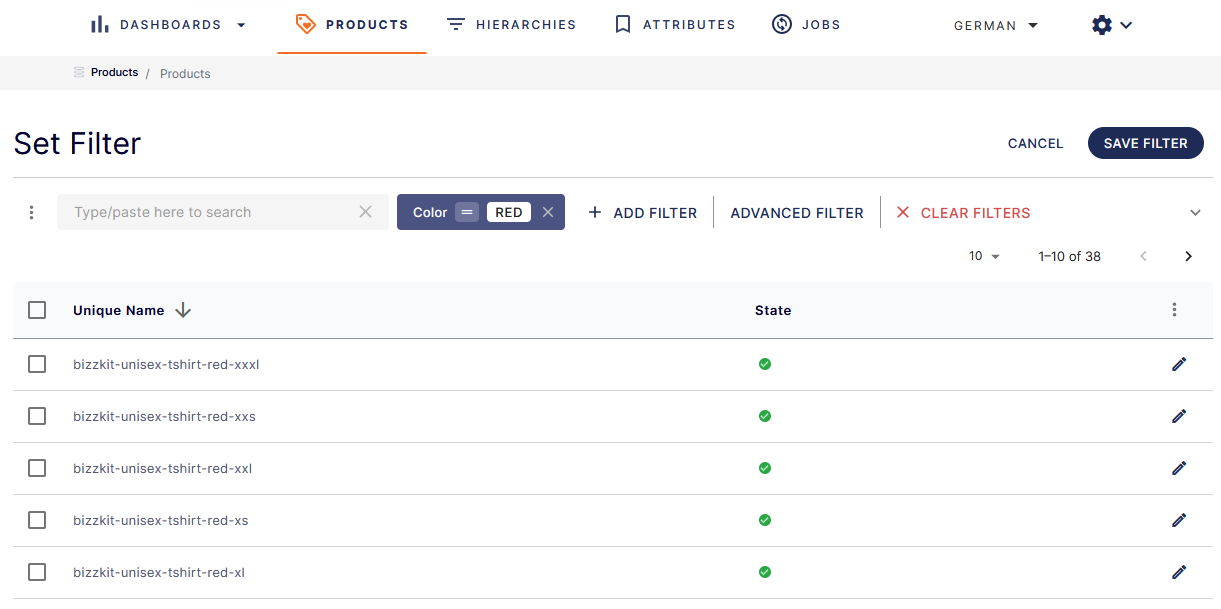
In the following example, a new widget is added to an existing dashboard, which shows the amount of red products in the product catalog.
Note
This example assumes there's a Color attribute which uses a global list containing the value Red.
- Open an existing dashboard
- Click on
+ Add widget - Set
All red productsas widget title - Select
Statisticsin theChart typefield - Under
Data, click the+ Create New Filterbutton- This will navigate to the product list page in
Widget Dataset Filtermode
- This will navigate to the product list page in
- Set a product filter to show all red products
- Click the
Basic filtersbutton - Select the
Colorattribute from the list- Search for it if it is not visible
- Select the
Equalsoperator underField type specific operators - Select
Redas value for the filter - Click the
Save and Set as Widget Datasetbutton (in the top right corner of the screen) - Set the name of the new filter and click
Save
- Click the
- Set
Red productsas value in theLabelfield - Click the
Savebutton
Tip
Read more about setting filters on widgets directly in the concepts article.
Setting a filter as a trend filter
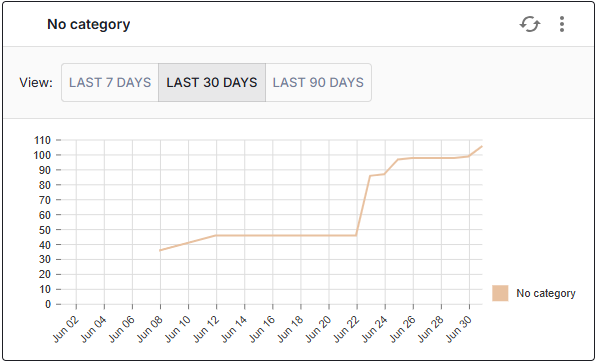
A trend line chart shows how a product count changes over time. Before you can add it to a dashboard, you need at least one trend filter. A trend filter is a shared filter that Bizzkit PIM tracks once per day. For more information, see the Trends concept article.
Note
A filter must be shared and owned by you before it can be set as a trend filter. A maximum of 10 trend filters can exist at a time across the installation.
- Open the product catalogue page
- Click the
Saved Filtersbutton - Find the shared filter you want to track
- If the filter is not shared yet, share it first
- Turn on the
Trendtoggle on that filter row- The filter now appears under the
Trend Filterscategory
- The filter now appears under the
- Wait for data to be collected
- A snapshot is taken once per day, so the first data point appears after the first daily snapshot
Creating a trend line chart widget
Once you have one or more trend filters, you can visualise them on a dashboard.
- Open an existing dashboard, or create a new one
- Click on
+ Add widget - Select
Trend line chartin theChart typefield - Add a title
- Under the trend selection, click
Add trend- Use the
Select trendsfield to choose a trend filter - Set a label for the trend, which is shown for its line in the chart
- Repeat to add more trends to the same chart, giving each a unique label
- Use the
- Click
Save - On the dashboard, use the
Viewselector on the widget to switch between the last 7, 30, or 90 days
Tip
Read more about the trend line chart widget in the concepts article.