Time-Based Experiences
A time-based variant is a scheduled version of an Experience. It applies during a time period that you define, and when that period ends, search falls back to the base Experience automatically. Use time-based variants for campaigns, seasonal sales, holidays, and product launches, so you can prepare changes in advance instead of turning settings on and off manually.
Every time-based variant belongs to one Experience and inherits its conditions. The variant adds the schedule on top and holds its own Effects, such as Smart boost and facets. If you are new to Experiences, read Experience first.
If you want the background first, read Time-Based Experiences.
Before you start
Make sure you know:
- which Experience the schedule should belong to
- when the variant should start, and when it should end
- what should differ from the base Experience during that period
Where to find time-based variants
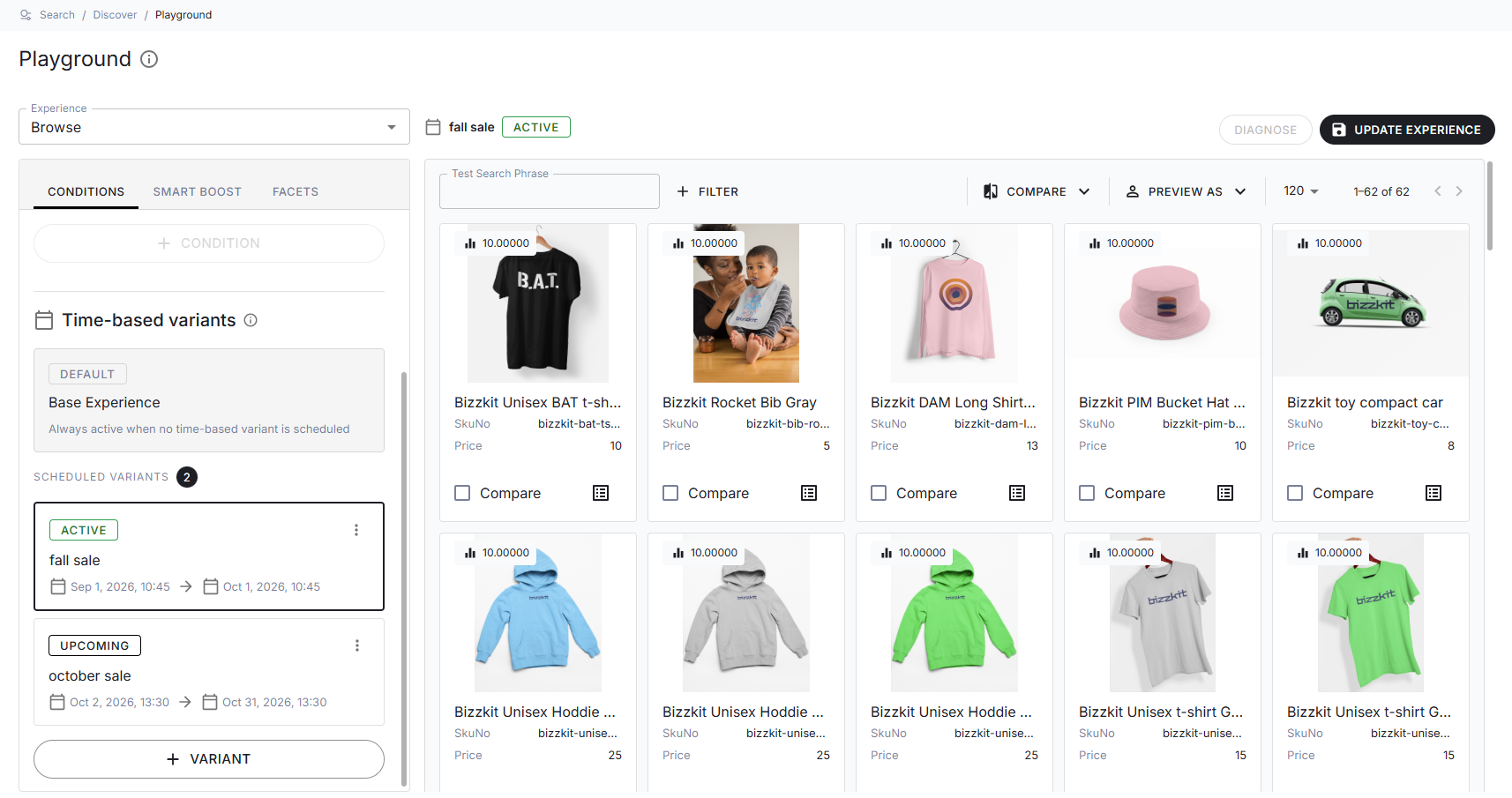
Open Playground for the segment you want to edit, select the Experience, and go to the Conditions tab. The Time-based variants section is placed below the conditions:
- The Base Experience card is always listed first and carries the Default status. It is always active when no time-based variant is scheduled.
- Scheduled variants lists the variants of the Experience, each with its name, its status, and the time period it covers. The number next to the label tells you how many variants are scheduled.
- + Variant creates a new variant.
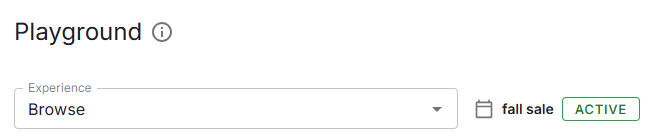
The Playground header shows which variant you are currently working on, next to the experience selector. It shows Base Experience when no variant is selected.
How to schedule a variant
- Open Playground for the segment you want to edit and select the Experience.
- Go to the Conditions tab and scroll to Time-based variants.
- Select + Variant.
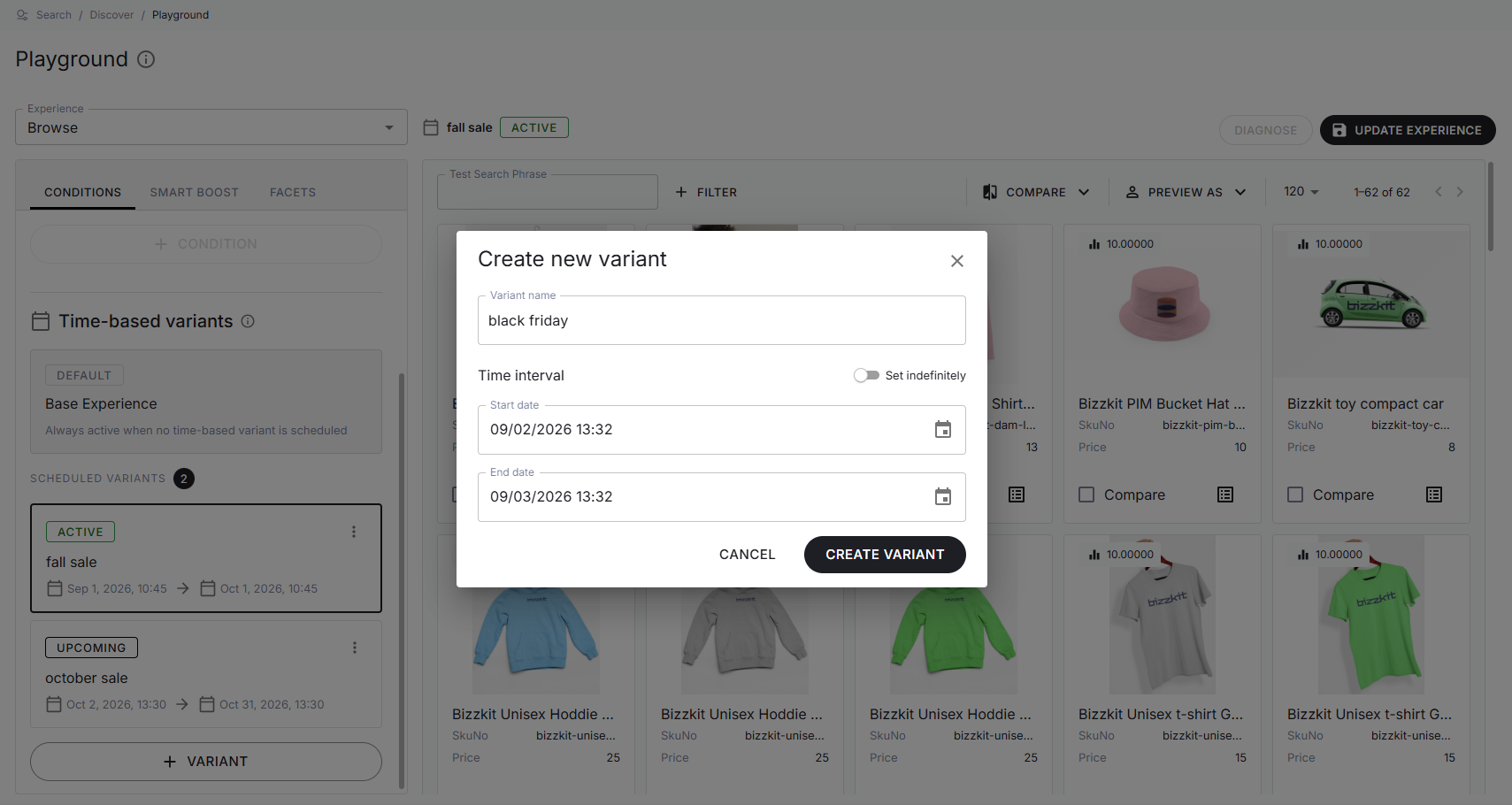
- Enter a Variant name. Name the variant after the campaign or season it covers, so it is easy to identify later.
- Set the Start date. A new variant defaults to a period that covers the next 24 hours.
- Set the End date, or turn on Set indefinitely if the variant should apply from the start date without an end.
- Select Create variant.
- Click the card of the new variant to select it. The selected card is marked with a highlighted border, and the Playground header changes from Base Experience to the name of the variant. You are now working on that variant, and everything you change applies to it instead of the base Experience.
- Configure the Effects of the variant, such as Smart boost and facets, and review the preview results.
- Publish the changes when the preview looks correct.
Note
The date and time fields use the local time zone of your computer, while the schedule itself is stored in UTC. Colleagues in another time zone see the same period, shown in their own local time.
Statuses
Each card shows a status that tells you whether the variant applies right now:
| Status | Meaning |
|---|---|
| Active | The current time is within the period. Both the start and the end of the period are included. |
| Upcoming | The period starts later. |
| Expired | The end of the period has passed. |
| Default | Shown on the Base Experience card, which applies whenever no variant is active. |
The list is sorted by status, with active variants first, then upcoming ones, and then expired ones. Within each group, the variants are sorted by start time. Statuses are calculated when the list is loaded, so reload Playground if you expect a variant to have changed status in the meantime.
How to edit or delete a variant
- Find the variant under Scheduled variants.
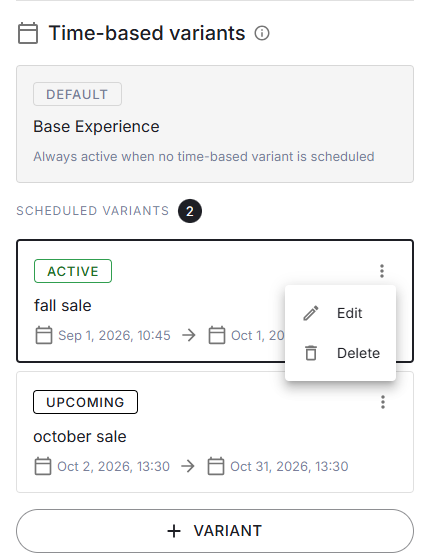
- Select the menu icon on the card.
- Select Edit to change the name or the period, or Delete to remove the variant.
- Confirm in the dialog, then publish the change.
Deleting a variant also removes its schedule and the business rules that belong to it. If you delete the variant that is currently selected, Playground returns to the base Experience.
What to expect
- A time-based variant inherits the conditions of its Experience and adds the schedule on top. When you change the conditions of the Experience, the change applies to all of its variants.
- Two variants of the same Experience cannot cover the same moment in time. If the periods overlap, the variant is not saved, and a message names the variant it conflicts with. An overlap also blocks publication, where it is reported as a duplicate variant condition.
- Periods that touch count as an overlap, so let one period end before the next one starts. A variant that is set indefinitely overlaps everything scheduled after its start date.
- An expired variant is not deleted. It stays in the list, its rules simply stop applying, and results fall back to the base Experience.
- Changes only affect live traffic after publication. The publication overview lists the scheduled variants under Experience Variations, with their period and status.
- A schedule is the most specific condition there is. While a variant is active, its business rules are preferred over the equivalent rules on the base Experience.
- Time-based variants are managed in Playground only. They are not listed in the experience overview or the experience tree, and they are not included when you compare experiences.
Tips
- Creating a variant does not select it. Always click the card of the variant you want to work on first, and check that the Playground header shows its name. If the header still shows Base Experience, your changes go to the base Experience instead of the variant.
- Click the Base Experience card to return to the base settings when you are done with a variant.
- Prepare a whole season in advance as a series of upcoming variants. Each one activates and expires on its own.
- Comparing results, or unlocking the conditions for editing, returns Playground to the base Experience and disables the variant list. Click the card of the variant again when you are done.