Area permissions
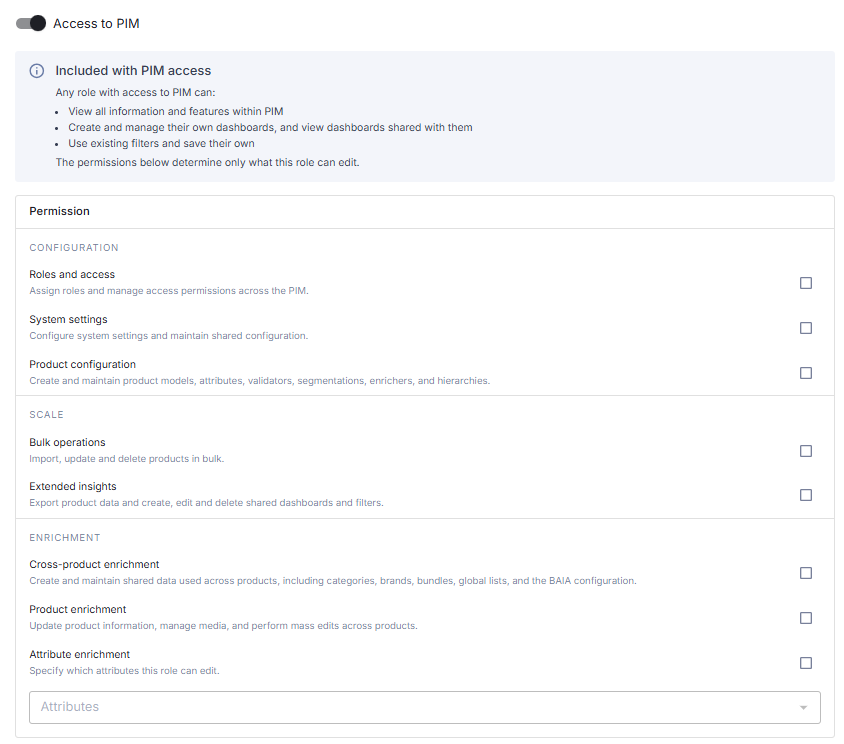
Area permissions decide what a role can do in Bizzkit PIM. They follow the work people do, not the technical parts of PIM. For each role, you answer two questions:
- Should the role use PIM? Then switch on
Access to PIM. The role can now see everything in PIM. - What should the role be able to change? Then select the areas that match the person's job, for example
Product enrichment.
If a role should change only a few specific attributes on products, use Attribute enrichment instead of an area.
flowchart LR
    A["Access to PIM<br/>View everything"] --> B["Areas<br/>Change what belongs to the area"]
    A --> C["Attribute enrichment<br/>Change selected product attributes"]
Where to manage permissions
Permissions are managed in PIM under Settings -> Roles, in the Administration group. Each role has one page with the Access to PIM switch, the areas, and Attribute enrichment.
The roles themselves, and which users have them, are managed in Bizzkit IAM.
To change permissions, your own role must have the Roles and access area. Without it, you can open the page but not change anything.
Typical roles
A role can hold any combination of areas. Its access is the sum of them.
Bizzkit recommends
Start from the person's job, and give the role only the areas that the job needs. Use these examples as a starting point:
| Person | Give the role |
|---|---|
| Needs to look up product information but not change it, for example a manager or a customer service employee | Access to PIM only |
| Translator or freelancer who should only edit a few text attributes | Access to PIM and Attribute enrichment with the selected attributes |
| Product editor who maintains product texts, media, and publishing | Product enrichment |
| Category or brand manager | Product enrichment and Cross-product enrichment |
| Data or e-commerce specialist who imports, exports, and shares reports | Product enrichment, Bulk operations, and Extended insights |
| PIM owner who sets up the data model and the integrations | Product configuration and System settings |
| PIM administrator | All areas |
Fewer users then need full administrator access, and each user can still do their own work.
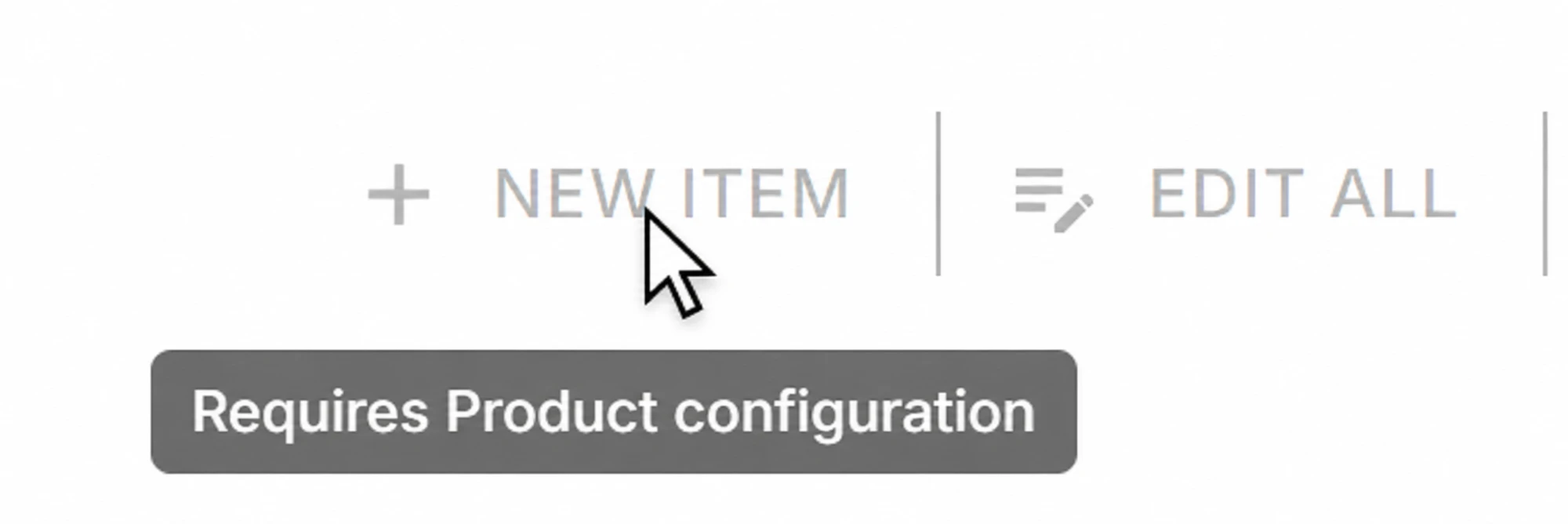
A user with too little access sees which area is missing. Buttons they cannot use are disabled, and many of them show a tooltip that names the area, for example Requires Product configuration.
Access to PIM
Access to PIM is the basic access that every PIM user needs. A role with only basic access can:
- view all information and features in PIM, including users, roles, and tenant and system settings
- create its own personal filters and dashboards, and change and delete them
- use shared filters, view dashboards that are assigned to it, and pin dashboards
Basic access does not allow any other change. This means you can create read-only users: they can see everything but cannot change products or setup.
Areas
The areas are grouped into Configuration, Scale, and Enrichment. Each area adds the right to create, edit, and delete what belongs to it. Holding one area does not include another.
Configuration
| Area | Give it to someone who should... | The area covers |
|---|---|---|
Roles and access |
decide who can do what in PIM | Permissions on roles, attribute permissions, and PIM users |
System settings |
maintain the setup that the whole PIM shares | Tenant and system settings, markets, channels, devices, translation cultures, webhooks, resolved views, and user-defined variables |
Product configuration |
design the product data model | Attributes, product validators, product enrichers, segmentations, and product hierarchies, including attribute values on hierarchy roots |
Scale
| Area | Give it to someone who should... | The area covers |
|---|---|---|
Bulk operations |
change many products at once | Bulk operations that update, unpublish, and delete products, product import from CSV, and custom operations |
Extended insights |
export data and share reports with colleagues | Product exports and export specifications, shared filters, dashboards assigned to other users, and trends |
Enrichment
| Area | Give it to someone who should... | The area covers |
|---|---|---|
Cross-product enrichment |
maintain data that many products share | Categories, brands, bundles, global lists, and the BAIA configuration, including the attributes on brands, categories, and global-list items |
Product enrichment |
work on the products themselves | Product information on every attribute, media, mass edit, product import from CSV, and publishing and unpublishing products |
Attribute enrichment
Attribute enrichment is for roles that should edit only some attributes on products, for example a translator who edits the long description and the unique selling points. It is not an area: it gives the role the right to edit the attributes you pick, and nothing else.
To use it, select Attribute enrichment and pick the attributes. A role can have up to 100 attribute permissions.
- Attribute permissions apply to products only. Editing attributes on brands, categories, and global-list items needs
Cross-product enrichment, and on hierarchy rootsProduct configuration. Product enrichmentandBulk operationsalready cover every attribute on products. When a role has either of them,Attribute enrichmentis locked, and the page shows which area covers it. Attribute permissions that the role already has are kept.- A role that can run Update products or Update attribute segments through attribute permissions can also publish the products it changes. See Publish state.
Can the role edit this attribute?
When a user edits an attribute value on a product, PIM checks the user's role in this order:
flowchart TD
    A["A user edits an attribute value<br/>on a product"] --> B{"Does the role have<br/>Access to PIM?"}
    B -- No --> C["Cannot edit<br/>any attributes"]
    B -- Yes --> D{"Does the role have<br/>Product enrichment?"}
    D -- Yes --> E["Can edit<br/>every attribute"]
    D -- No --> F{"Does the role have an<br/>attribute permission for<br/>this attribute?"}
    F -- Yes --> G["Can edit<br/>this attribute"]
    F -- No --> H["Cannot edit<br/>this attribute"]
Tip
Read about configuring attribute permissions in the how-to article.
Good to know
- Exports. The user who started an export can always download the result. Downloading an export that another user started needs
Extended insights. - Imports of other data. Importing attributes, predefined values, hierarchies, brands, or global lists needs the area that owns that data, not
Bulk operations. - Changes through the API. If a role is given an area through the API, it gets basic access as well, even if basic access was not part of the request. A request that removes basic access from a role that keeps other areas is rejected.
Tip
Read about who can create, share, change, and delete dashboards, filters, and trends in the articles on those features.