AI filters (Beta)
AI filters let you describe the products you want to find in plain language. BAIA (Bizzkit AI Assistant) then builds the filter configuration for you, directly in the existing filter interface on the product catalogue page.
Beta
AI filters are currently in beta. The functionality and its behaviour may change as the feature evolves.
AI filters are the first step towards conversational configuration in Bizzkit, where tasks that previously required detailed knowledge of the user interface can be completed by describing the desired outcome.
The benefits of AI filters include:
- Faster creation of filters
- Easier access to advanced filtering
- A lower learning curve for new users
- Full transparency and control, as the result is an ordinary filter that you can review and edit
Prerequisites
AI filters must be enabled for your solution by Bizzkit. To start using AI filters, contact your Bizzkit contact and ask to have the feature enabled.
How to use AI filters
When AI filters are enabled, the AI Filter button is shown in the filter bar of the product catalogue, after the Add filter, Advanced filters, and Saved filters buttons. The button is marked with a sparkle icon and a BETA chip.

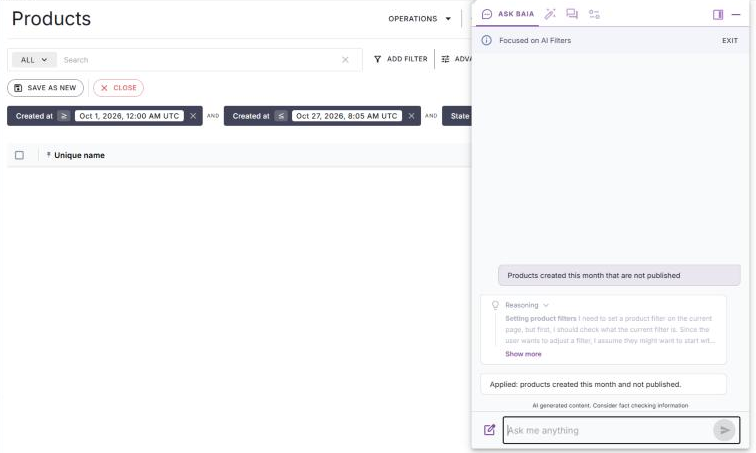
Clicking the AI Filter button opens BAIA in AI filters mode. A banner with the text "Focused on AI Filters" and an Exit button is shown at the top of the conversation, and BAIA greets you and invites you to describe the products you are looking for.
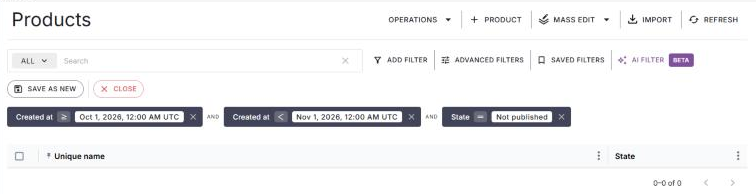
Describe the result you want in plain language. BAIA applies the filter to the product catalogue straight away. The filter is shown as ordinary filter chips in the filter bar, and the product list reloads to show the matching products.
Important
Applying a filter from BAIA replaces the current filter conditions on the page. Any free text search is kept unless you ask BAIA to change or clear it.
BAIA still answers requests that are not related to filtering while AI filters mode is active. To leave AI filters mode, click Exit in the banner.
Example prompts
The following prompts show the kind of requests that AI filters can handle:
- "Products that are bundles and have been updated within the last 90 days."
- "Show all products in the T-shirts or Sweatshirts categories that are missing USPs."
- "Products created this month that are not published."
- "Show products from the Nike brand with missing pictures."
Refining a filter
A filter created by BAIA can be refined in two ways:
- Continue the conversation with BAIA and describe what should be changed.
- Edit the filter chips manually, in the same way as any other filter.
You can move freely between the two. BAIA reads the current filter before changing it, so any manual edits you have made are kept when you ask BAIA for further changes.
Transparency and control
The result of an AI filter is an ordinary filter, which you can review and edit like any other filter. BAIA never saves a filter on your behalf. If you want to keep a filter for later use, save it yourself using Save as new, or Update filter for a filter that is already saved, as described in Saving filters.
Relation to existing filters
AI filters build on the existing filter types in Bizzkit PIM. Read more about these in:
BAIA creates an advanced filter when the request requires logical grouping with the OR operator, or filtering within a specific segment, such as a specific language.
Important
As soon as an advanced filter has been created, or if a basic filter has been transformed to an advanced filter, it is no longer possible to transform it to a basic filter.
Beta limitations and feedback
As AI filters are in beta, some requests can't be translated into a filter that matches the request exactly. In those cases, BAIA creates the filter that comes closest to the request. Always check the resulting filter and refine it where needed before relying on the result.
Your feedback helps improve AI filters. Share your experiences and suggestions with your Bizzkit contact.