Transformation functions
Transformation function allows you to serve other version of original images such as thumbnail.

Each transformation function is a series of transformations applied to the image to create a new version. Such as scaling the image or applying a water mark.
Transformation functions are easy to use as the URL are more predictable and can therefore be constructed directly, usage of transformation functions also abstracts the caching away entirely.
Output format
A transformation function will produce a new image where the type is defined by the output format of the transformation function. The following output formats are supported:
- JPEG
- PNG
- WebP
It is highly recommend to leave the output format to the default WebP.
Embedded metadata in transformed images
Applying a transformation function re-encodes the image, and the metadata embedded in the original file is not carried over to the result. One property is the exception: the IPTC Digital Source Type property, Iptc4xmpExt:DigitalSourceType, which records how an image came about, is kept with its value unchanged, so that a marking on an AI-generated image survives the transformation.
Everything else is removed, including all other XMP properties, IPTC-IIM, and EXIF. An embedded color profile is applied to the image rather than kept, so colors are preserved even though the profile itself is gone.
The _original transformation function serves the stored file exactly as it is, so its metadata is untouched, unless the file was imported with reduceImageToRecommendedSize set to true and was large enough to be reduced. See uploading files directly to storage for that option.
Marking AI-generated images
Article 50(2) of the EU AI Act requires providers of AI systems that generate synthetic content to mark their output in a machine-readable format. That obligation falls on the system that generates the image, so DAM does not add a marking, but it does keep one that is already present. An image that is marked before it is uploaded therefore stays marked in every version served from the CDN.
To make sure a marking survives, write the DigitalSourceType property into the XMP packet of the image before uploading it, in the IPTC Extension namespace http://iptc.org/std/Iptc4xmpExt/2008-02-29/. Give it a value from the IPTC digital source type vocabulary, for example http://cv.iptc.org/newscodes/digitalsourcetype/trainedAlgorithmicMedia for an image created by a generative AI model. DAM never inspects or rewrites the value, so any term from the vocabulary is preserved as written.
Rendering text in SVG files
When DAM transforms an SVG file into a raster format such as PNG or WebP, any text that is stored as live text, rather than as vector outlines, is drawn using the fonts that DAM supports. If the SVG references a font that DAM does not support, the text is drawn with a substitute font instead. A substitute font can differ in weight, width, and letter spacing, so the text may not match the original design, and surrounding elements can shift.
Text that is already stored as vector outlines (shapes) does not depend on any font and always renders exactly as designed.
Warning
When DAM transforms an SVG file, it does not support the CSS @font-face rule. A font that is embedded in the SVG file, for example as a base64 data URI, or referenced from a remote URL, is ignored, and the text is drawn with a substitute font. Only the fonts that DAM supports are used. This differs from web browsers, which do load embedded and remote fonts, so an SVG can look correct in a browser but change when it is transformed by DAM.
To make sure text in an SVG file renders as intended, use one of the following approaches.
Convert text to vector outlines
Converting text to outlines, often called Create outlines, Convert to path, or Flatten in design tools, replaces the text with shapes. This removes any dependency on fonts and is the most reliable option. Choose this whenever the text does not need to remain editable.
Use a supported font
If the text must remain editable, use one of the common web-safe font families that DAM supports: a sans-serif such as Arial, a serif such as Times New Roman, or a monospace such as Courier New. Fonts outside this set are not guaranteed to be available and are substituted.
Supported transformations
The following transformation types are supported.
Resize
Resizes an image to a specified height and width. If only one dimension is specified, the size of the other dimension is automatically calculated from the aspect ratio.
Canvas
Fits an image into a canvas of a specified height and/or width (if only one dimension is specified, the other dimension in the canvas is unlimited) and optionally enlarges the image to fill the canvas in case it's smaller than the canvas. The original aspect ratio is preserved.
Merge
Merges the transformed images with a resource image. For instance adding a watermark to the image. The image is merged in a specified horizontal position (left, center, right), vertical position (top, middle, bottom) and z-position (above, below) in the other image.
Change quality
Sets a quality for the image when exported to e.g. JPEG.
Ensure minimum weight and width
The operation that ensures that the image is at least the given dimensions.
Warning
It is important to keep in mind that transformation functions are immutable by its nature, meaning they cannot be changed in the future. If the transformation function did not live up to expectations the only way to fix it is to create a new one.
Built in transformation functions
The following transformations are build into the DAM and are always available.
_small-previewReturns a 350x350 pixel webP image while preserving aspect ratio._medium-previewReturns a 720x720 pixel webP image while preserving aspect ratio._large-previewReturns a 2160x3840 pixel webP image while preserving aspect ratio._recommended-sizeReturns a 6000x6000 pixel webP image while preserving aspect ratio. An image that is already smaller than the canvas is not enlarged. It applies the same cap as importing a file withreduceImageToRecommendedSize, and is intended for handing an image to an external system that limits the size it accepts. Because the output format is WebP, a URL using this transformation function ends in.webp, also when the original file is a JPEG or a PNG._originalReturns the original file. This works for all file types. This must be used for video files.
This are used internally in the Bizzkit platform but may also be used by external systems.
How to manage transformation functions
Transformation functions are managed using the Rest API or using the Sdk.
When creating a transformation function the function are given a unique name that are used when referring to the transformation function. It can take a few minutes before a newly created transformation function is fully deployed to all services and transformation with the new function is available.
How to access a transformed image
The URLs for an image can be constructed as follows {cdn-url}/{file-id|cropping-id}/{transformation-id}/{file-name}.{output-extension}.
Getting the URL of the CDN
The URL to the CDN have been provided to the partner organization, but can also been read in the DAM UI under general information.
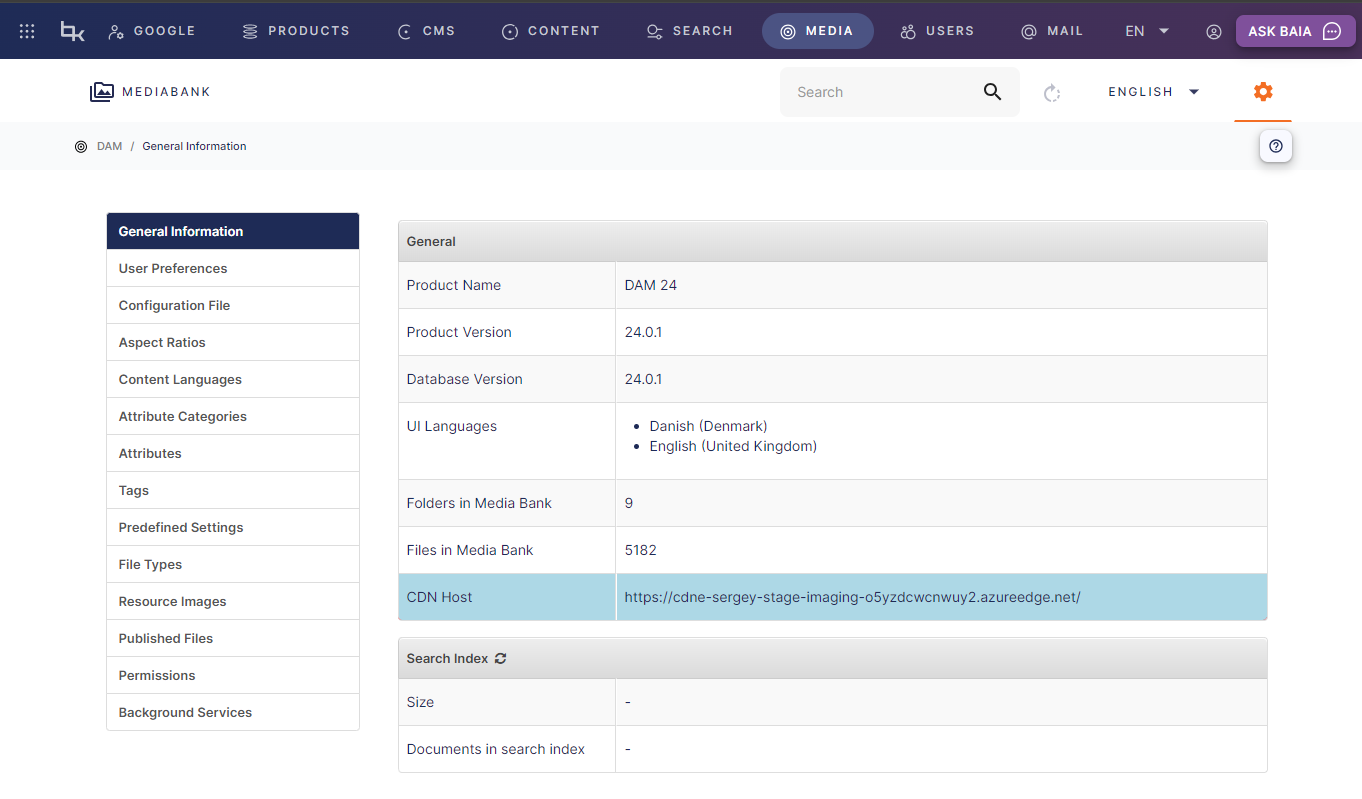 .
.
In the following the CDN URL is assumed to be https://my-cdn-url.bizzkit.com.
The URL can also be retrieved by calling the: GET /api/_/settings/cdn endpoint on the api.
Construction of URLs
Assuming the file my-image.jpg was uploaded to DAM and given the file id 51216401-481e-4637-bed6-a581cac98e43 by the dam.
A transformation called product-image-large have been constructed that produces the output type webp the URL of the transformed image would then be:
https://my-cdn-url.bizzkit.com/51216401-481e-4637-bed6-a581cac98e43/product-image-large/my-image.webp
The original image will be available on:
https://my-cdn-url.bizzkit.com/51216401-481e-4637-bed6-a581cac98e43/_original/my-image.jpg
Notice the change in file extension.
If file name does not match the stored file the CDN will produce a 301 permanent redirect to the correct image. For example the following:
https://my-cdn-url.bizzkit.com/51216401-481e-4637-bed6-a581cac98e43/product-image-large/https://my-cdn-url.bizzkit.com/51216401-481e-4637-bed6-a581cac98e43/product-image-large/my-image.jpg
Would both result in a permanent redirect to https://my-cdn-url.bizzkit.com/51216401-481e-4637-bed6-a581cac98e43/product-image-large/my-image.webp
Cropping ids can be used in the same way as image ids. If for example a cropping with id 097d9bc0-3715-4139-ac05-112c8b47846c of the image existed the URL of a scaled version of the cropped image could be: https://my-cdn-url.bizzkit.com/097d9bc0-3715-4139-ac05-112c8b47846c/product-image-large/my-image.webp