Signal parameters
Signal parameters let you boost products based on real conversion and engagement data — such as turnover, order lines, and clicks — captured through Bizzkit Event Tracking. Once the integration is in place, the data flows into Ecommerce Search and is kept up to date automatically, so you don't have to manually export and ingest analytics yourself. Learn more
This relies on the relevant events being tracked by Bizzkit Event Tracking: order events for turnover and order lines, and click events for clicks. The available signal types therefore depend on which events your integration sends.
A signal parameter is a parameter that uses the Signals source together with the AI Ranking parameter type. Instead of you ingesting values from an ERP or external system, Ecommerce Search continuously fetches pre-aggregated signal data and ranks your products accordingly.
Note
The Signals source is only available with the AI Ranking parameter type and requires an active integration with Bizzkit Event Tracking.
Signal types
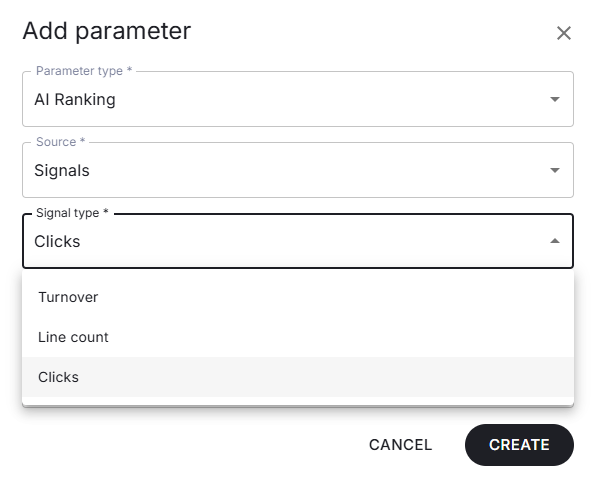
When you create a signal parameter, you choose one of the following built-in signal types:
| Signal type | What it measures |
|---|---|
| Turnover | Revenue per product, aggregated from order events (24-hour window, updated hourly). |
| Line count | Number of order lines per product, aggregated from order events (24-hour window, updated hourly). |
| Clicks | Number of clicks per product, aggregated from click events (24-hour window, updated hourly). |
Example - "Boosting best sellers"
You want your best-selling products to rank higher in search results, but you don't want to manually export sales figures from your order backend and ingest them every day.
Instead, you create a signal parameter using the Turnover signal type. From now on, Ecommerce Search automatically collects revenue data from your order events and boosts products that sell the most — keeping your search results aligned with what customers actually buy, with no manual work.
How to create a signal parameter
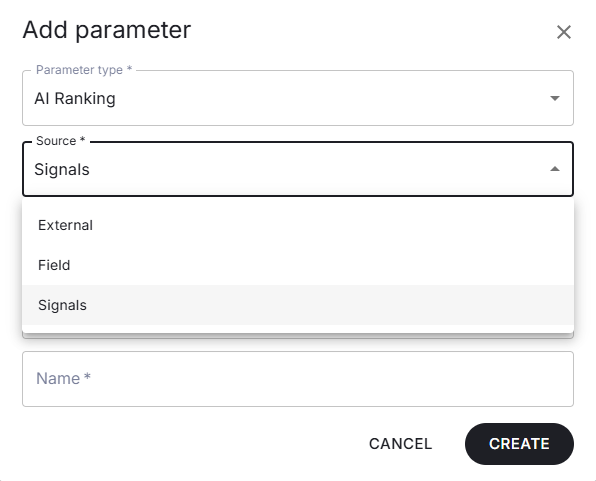
- On the parameters page, click + Add parameter.
- Set Parameter type to AI Ranking.
- Set Source to Signals.
- Select the Signal type you want to use (Turnover, Line count, or Clicks).
- Give the parameter a descriptive Name.
- Click Create.
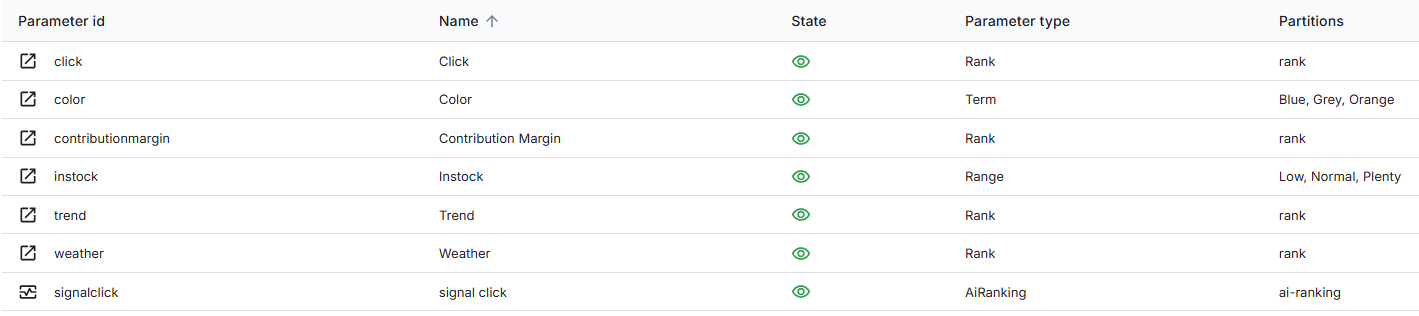
Once created, the signal parameter appears in the parameter list with its own distinct icon, marking it as a system-defined signal parameter. It can then be assigned a weight in your experiences' business rules to influence commercial sorting, just like any other parameter.
Good to know
- Each signal type can only be used by one parameter at a time. For example, only a single parameter can use the Turnover signal type.
- The signal type cannot be changed after creation. To use a different signal type, delete the parameter and create a new one.
- Signal parameters always use the AI Ranking parameter type and follow the same normalization and scoring as other AI Ranking parameters.
- Data updates automatically. Signal values are refreshed hourly based on the most recent 24 hours of events — no manual ingestion is required.