AI value generation
AI value generation covers two capabilities in PIM: text generation for text-based attributes, and suggesting values for attributes backed by global lists. You can use text generation for both individual products and multiple products simultaneously, but suggested values for global lists can only be done for a single products at a time. For more information on generating AI text for multiple products at once, go to AI text generation in Mass Edit.
There are is no setup required to start generating values, but configuring it allows for generating less generic values. For more technical details, please refer to the concept documentation on AI value generation.
Setting up your configuration
Setting up AI value generation involves two parts: relevant attributes and BAIA configuration.
Configure relevant attributes
Relevant attributes are configured globally and apply to all AI value generation. They define which attributes BAIA uses as input when generating text or suggesting values.
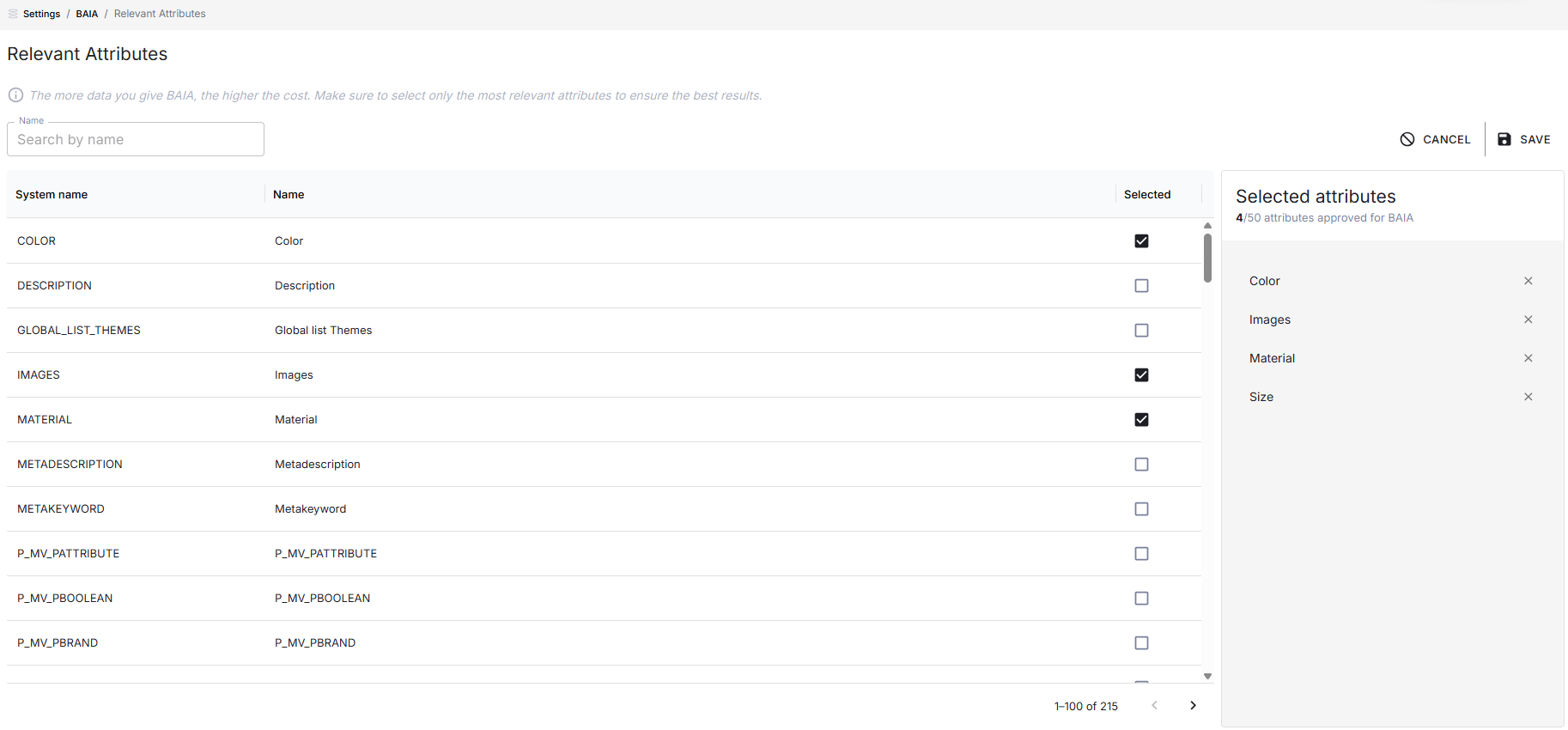
Navigate to Settings and under the BAIA section you can find the Relevant Attributes page. From here, select the attributes that BAIA should consider when generating values.
Example
These attributes will be used as input for the generated value, so if you select a Color and Size attribute, the generated text will most likely include these two values as well or the suggested value for global list will take them into account.
BAIA configuration
BAIA configurations determine how BAIA generates or suggests values.
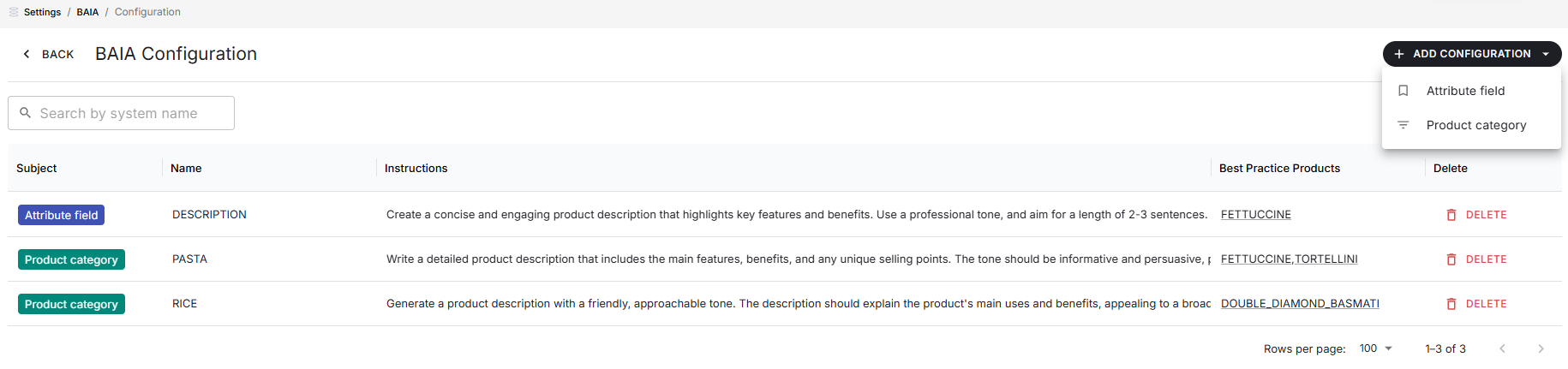
Navigate to Settings and under the BAIA section you can find the BAIA Configuration page. This page displays a list of all your configurations. Use the basic filters to find specific configurations. These configurations are designed to be set up once, and from there, you're ready to apply them to your products. Click Add Configuration and select the type to create a new configuration. Currently you can choose between Attribute field, Product category, Translation culture, and Channel when creating a new configuration.
A configuration for an Attribute field is the base configuration used when generating a value for that specific attribute field. A configuration for a Product category is applied when generating a value on a product which has the product category set as a primary category. A configuration for a Translation culture adds instructions for a single language or culture. It is applied when generating a value for an attribute field that is segmented by translation culture, using the configuration that matches the culture of the active segment. A configuration for a Channel adds instructions for a single channel. It is applied when generating a value for an attribute field that is segmented by channel, using the configuration that matches the channel of the active segment.
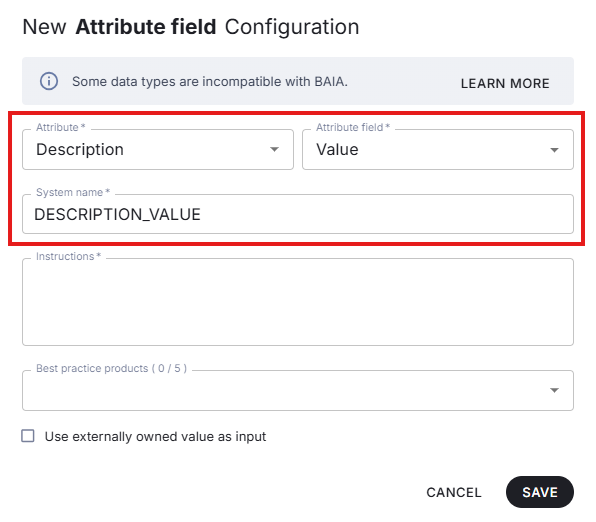
First, select which attribute and field or product category the configuration is for. A system name is automatically set based on the attribute and attribute field, but can be changed.
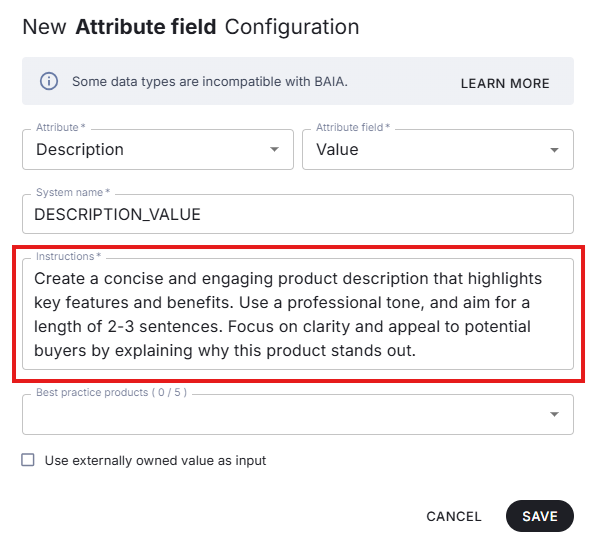
Next, customize BAIA's behavior by writing an instruction prompt. This is where you can define the tone of voice, word count, style, and context for the generated text.
Examples of instruction prompts
Example 1
Create a concise and engaging product description that highlights key features and benefits. Use a professional tone, and aim for a length of 2-3 sentences. Focus on clarity and appeal to potential buyers by explaining why this product stands out.
Example 2
Generate a product description with a friendly, approachable tone. The description should explain the product's main uses and benefits, appealing to a broad audience. Keep the language simple and relatable.
Example 3
Write a detailed product description that includes the main features, benefits, and any unique selling points. The tone should be informative and persuasive, providing enough detail to help the customer make an informed purchase decision.
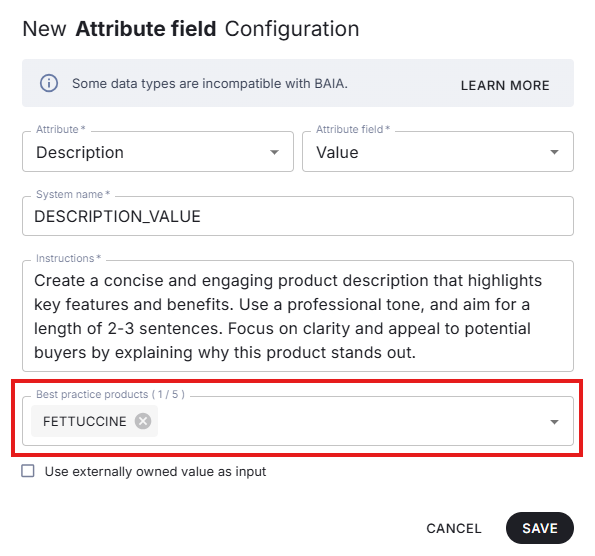
Now, select your best practice products. These are your well-enriched products that BAIA will use as examples when generating new values. Selecting at least three best practice products helps provide the AI with more variety, improving the accuracy and quality of the generated results.
Once you're finished with the configuration, click Save to finalize your configuration.
Create a translation-culture or channel configuration
Translation-culture and channel configurations work a little differently. Instead of an attribute field or product category, you select the segment the instructions apply to. You provide instructions only; there are no best practice products.
To create one, click Add Configuration and select Translation culture or Channel. Choose the target segment, give the configuration a system name, write the instructions that should apply when generating values for that segment, and click Save.
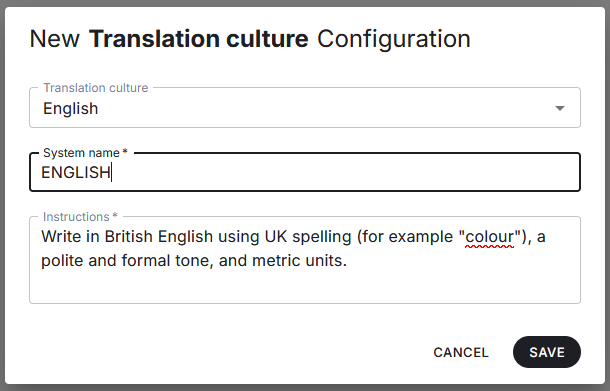
For a translation-culture configuration, the target is a culture such as en-US or da-DK, and the instructions typically cover the preferred tone of voice or regional spelling for that language.
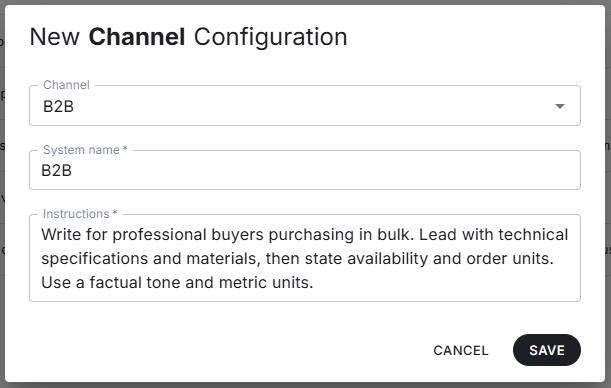
For a channel configuration, the target is one of your channels, and the instructions typically cover how content should read on that channel, such as a technical style for a trade portal or a shorter, benefit-led style for a consumer storefront.
Each configuration targets a single culture or channel. To provide instructions for another one, create a separate configuration for it.
Example
Create a configuration for en-US with instructions to use American spelling and a formal tone. To also support Danish, create a separate configuration for da-DK with its own instructions. When you generate a value for the Danish segment of an attribute field, the da-DK instructions are used; generating for the English segment uses the en-US instructions. Channel configurations work the same way: a configuration for your B2B channel applies when generating a value for the B2B segment, and a separate configuration for your B2C channel applies when generating for the B2C segment.
Generate AI values on individual products
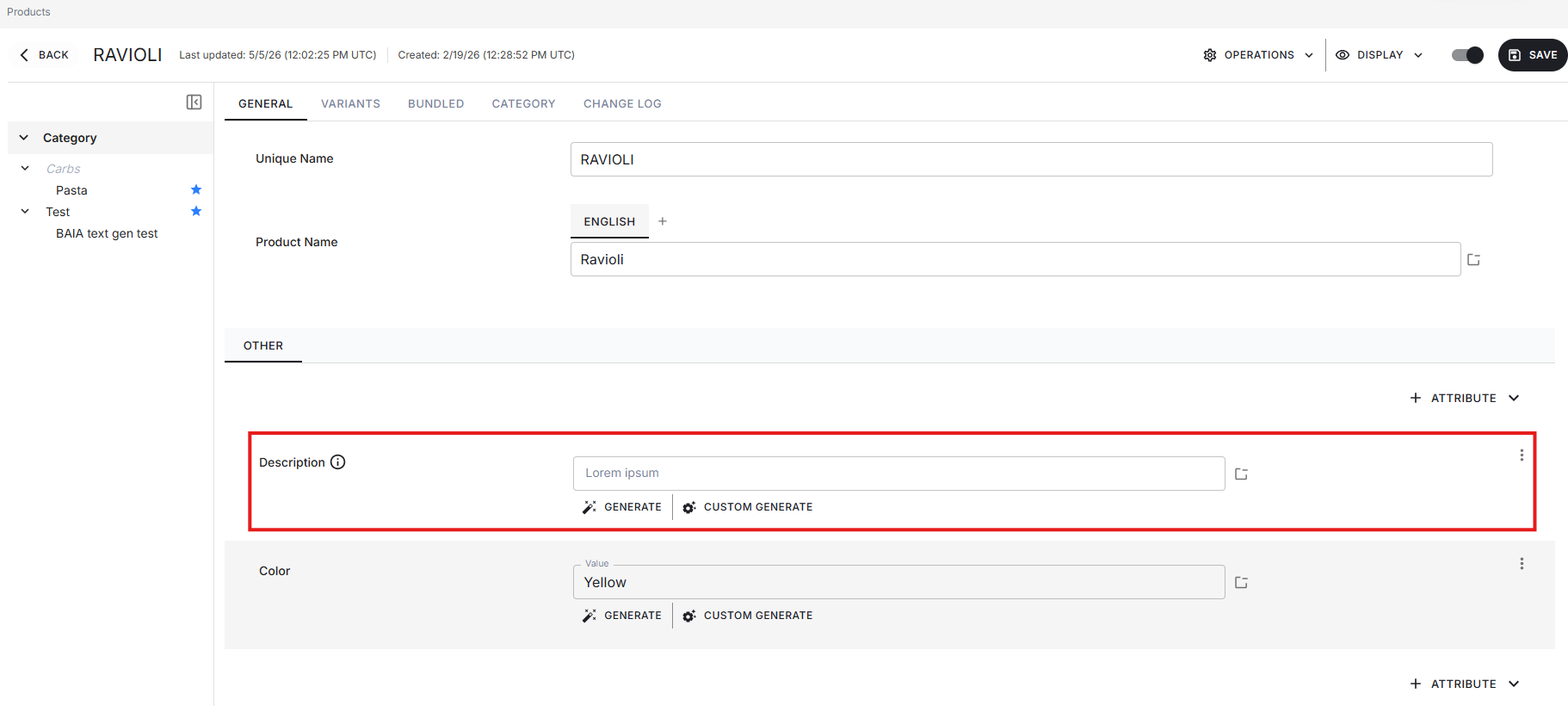
Go to the product catalog and select the product for which you wish to generate a value. Add the attribute you want to generate text for if it isn't already present on the product - in this case, the description attribute.
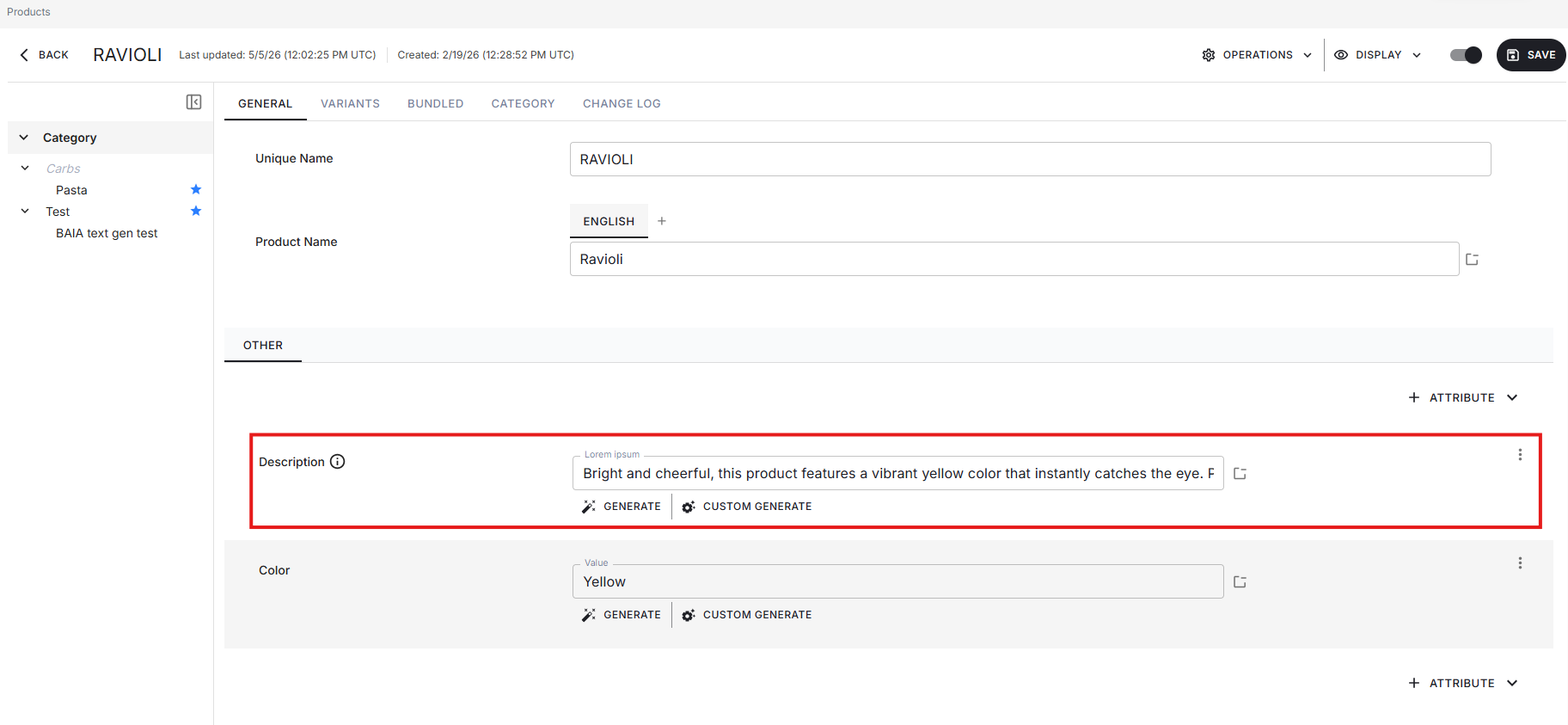
The Description attribute UI includes a text field, a generate button, and a custom generate button. The generate button creates a value based on the current configuration, while the custom generate button allows for further specifying the generation before generating a value.
Press the Generate button, and BAIA will create a product description based on your specified relevant attributes, instructions and best practice products. If a description already exists, a data overwrite warning will appear before you can generate new text.
Generate AI texts on multiple products
As an enhancement to the Mass Edit feature, you can generate AI text while in Mass Edit mode. With advanced configuration of your attributes, larger text fields, and the ability to generate text for up to three different attributes for many products at once, you can work smarter and faster.
There are two ways to start generating AI text in Mass Edit. While on the product list, you can use the dropdown arrow next to the Mass Edit button to access the AI text generation feature directly. Alternatively, you can switch to the text generation function from the top left corner while in Mass Edit mode.
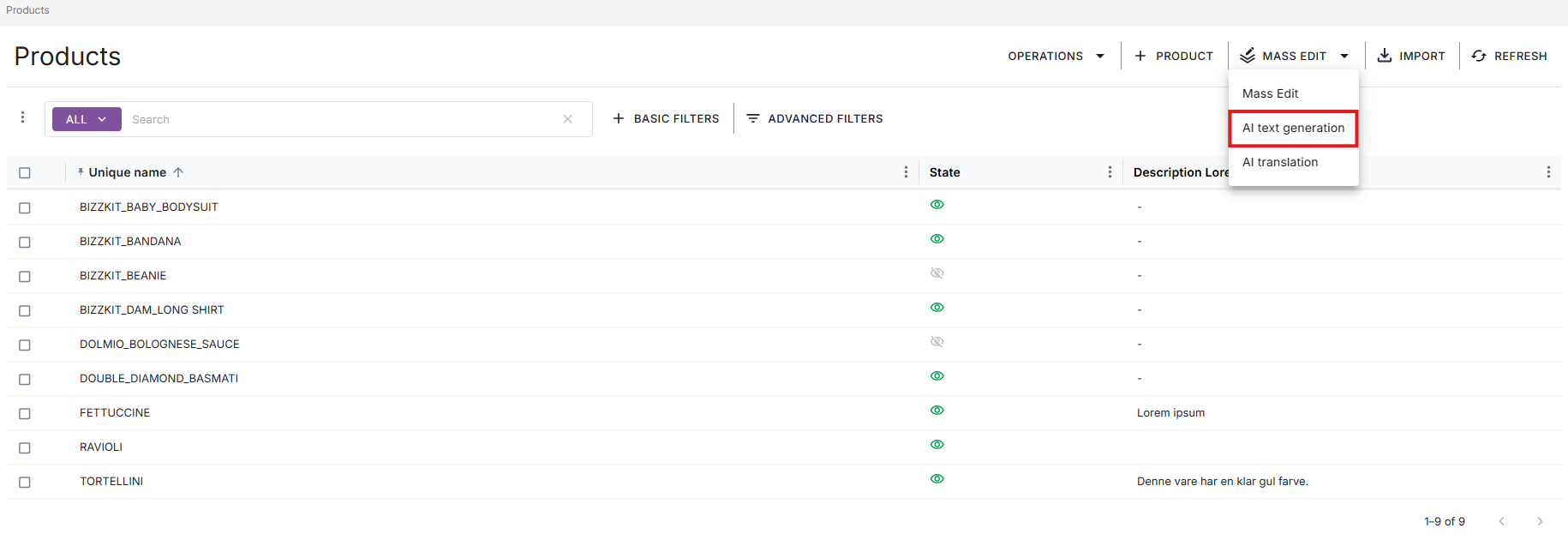
Access the AI text generation feature in Mass Edit from product list. 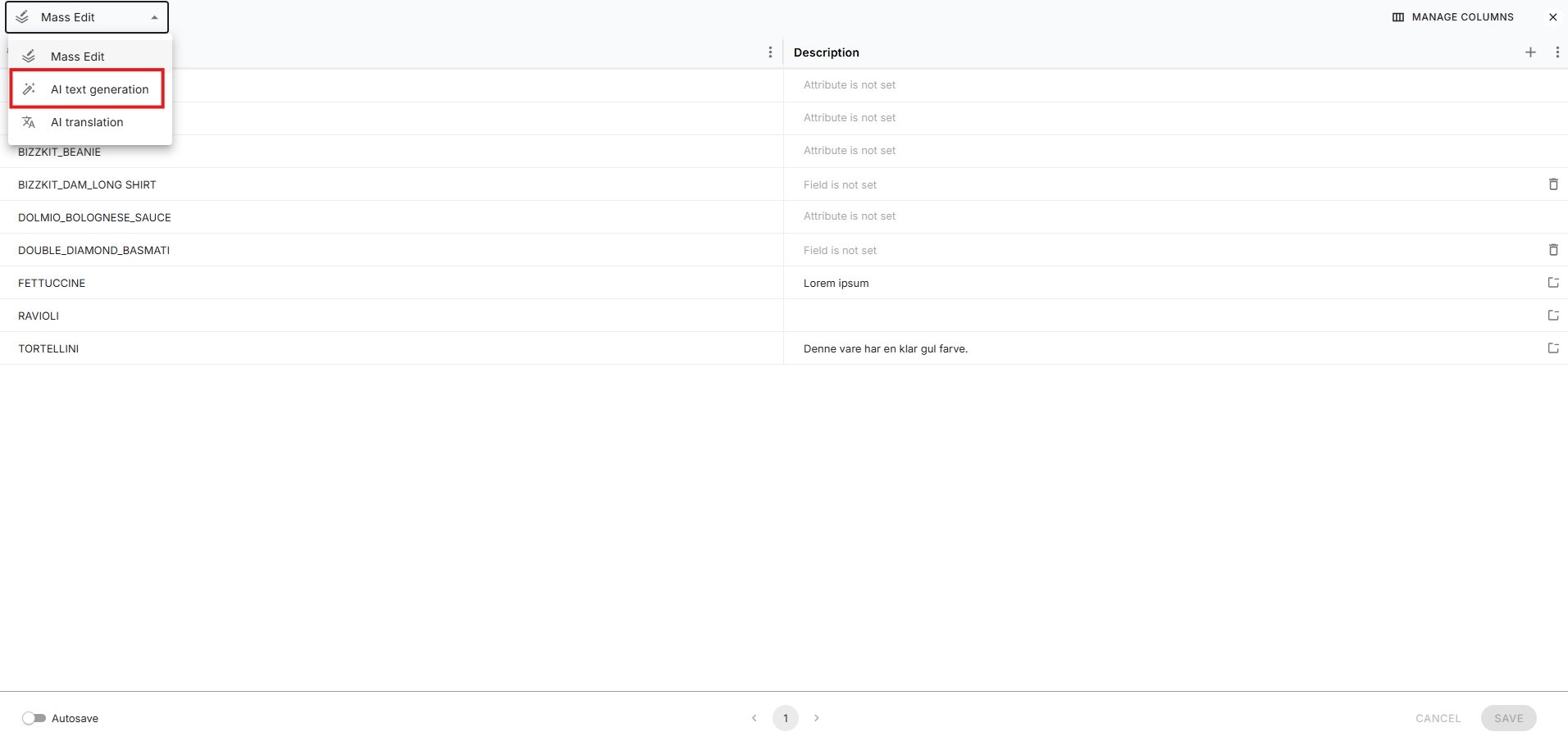
Switch to AI text generation while viewing Mass Edit.
When you press the AI Text Generation button, a dialog appears, allowing you to generate AI text for up to 100 products (the maximum amount of products shown per page in Mass Edit) and three attributes across multiple products simultaneously. The system will automatically select configured attributes based on the columns you've previously applied in the product catalog.
Tip
Make sure to add the attribute you want to generate a text for as a column to the product list. This ensures the attribute is shown in the Mass Edit view as well and allows you to generate a text for it.
If there is existing text in any of the products, you can choose to allow the AI-generated text to overwrite it. This option gives you the flexibility to update or replace outdated texts, ensuring your product information remains current and engaging.
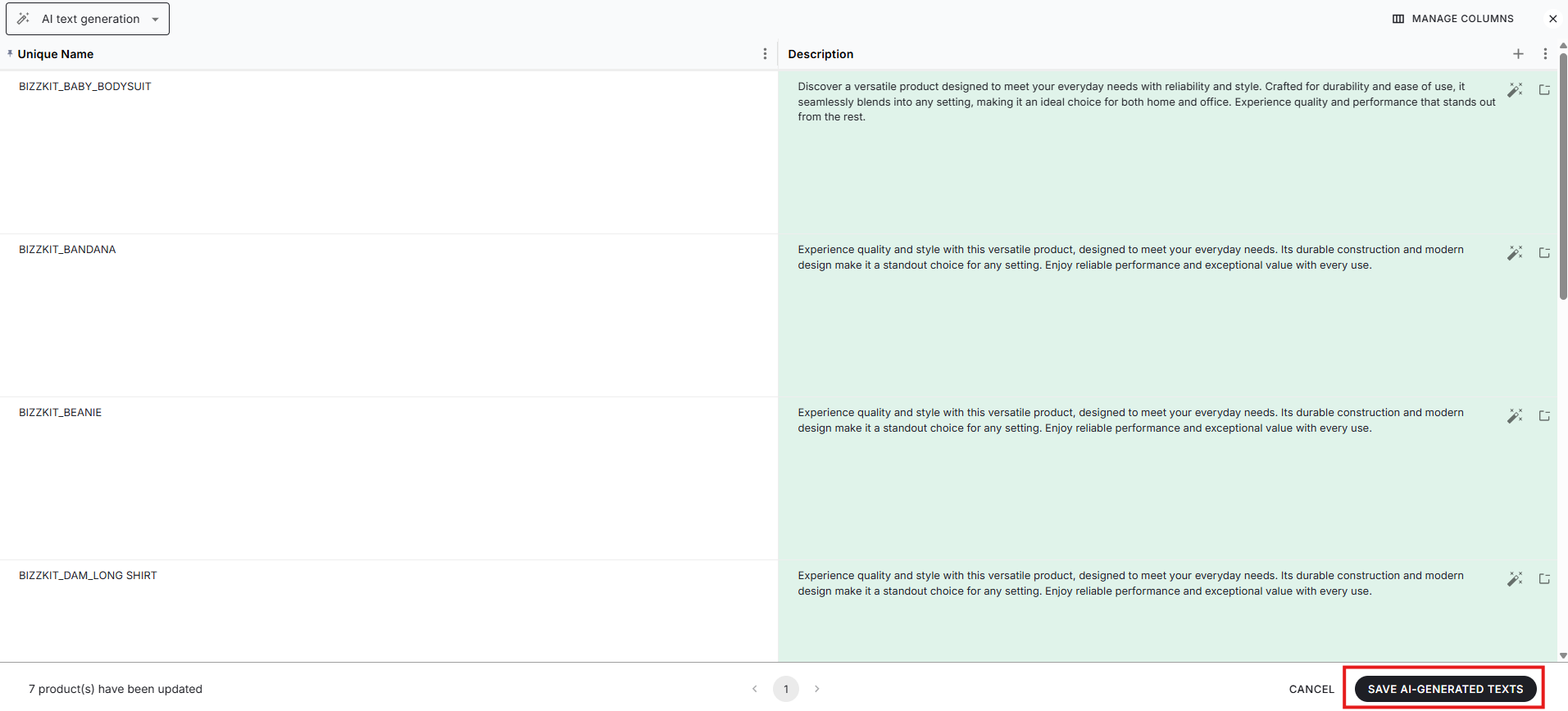
When the user clicks the Generate Text button, BAIA will begin generating text, loading each entry one by one. This allows the user to review and assess each generated piece as it's created, ensuring it aligns with their expectations before finalizing. All text fields that have successfully generated content will display a green background color for easy identification.
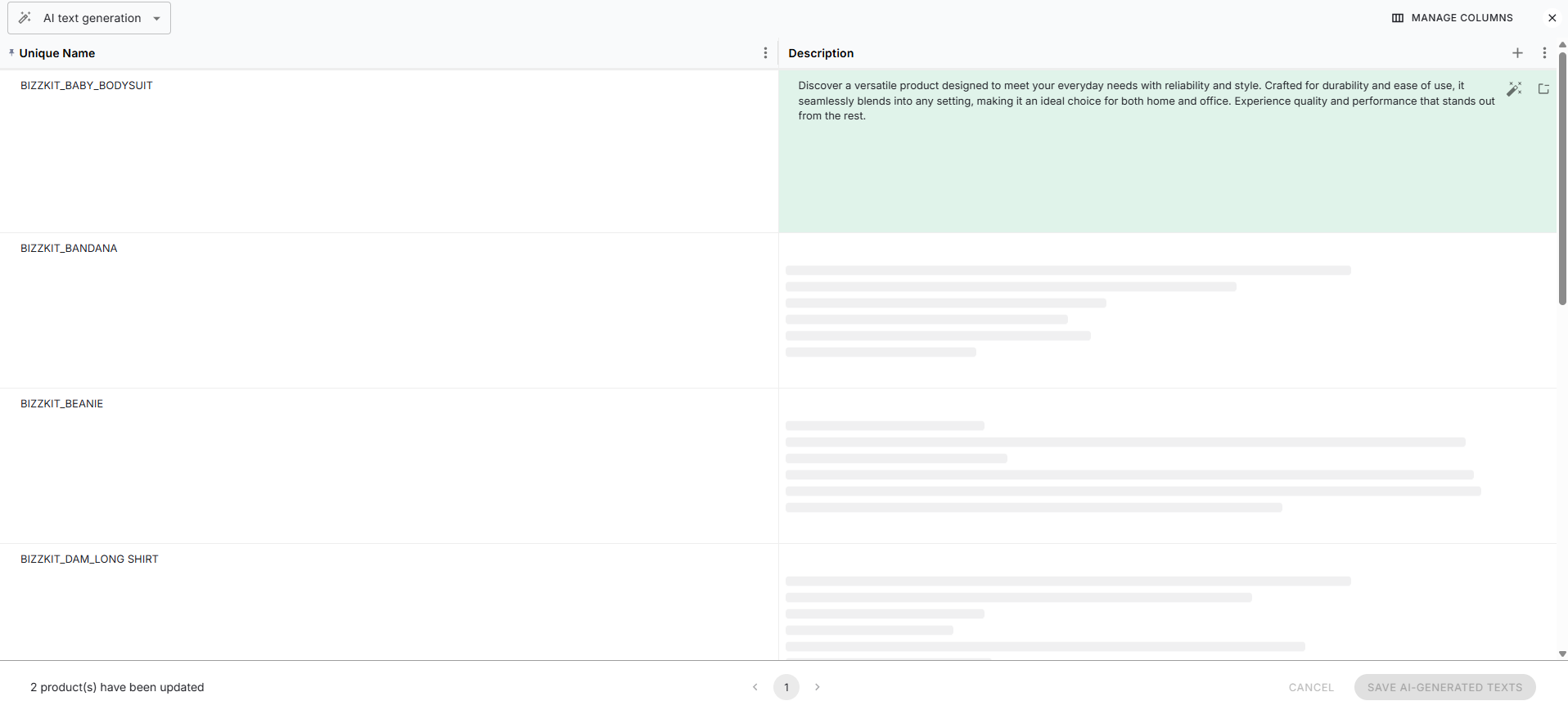
When all the text is generated, the text fields will display a green background. If you're not satisfied, you can either edit the text directly in the field or generate a new version.
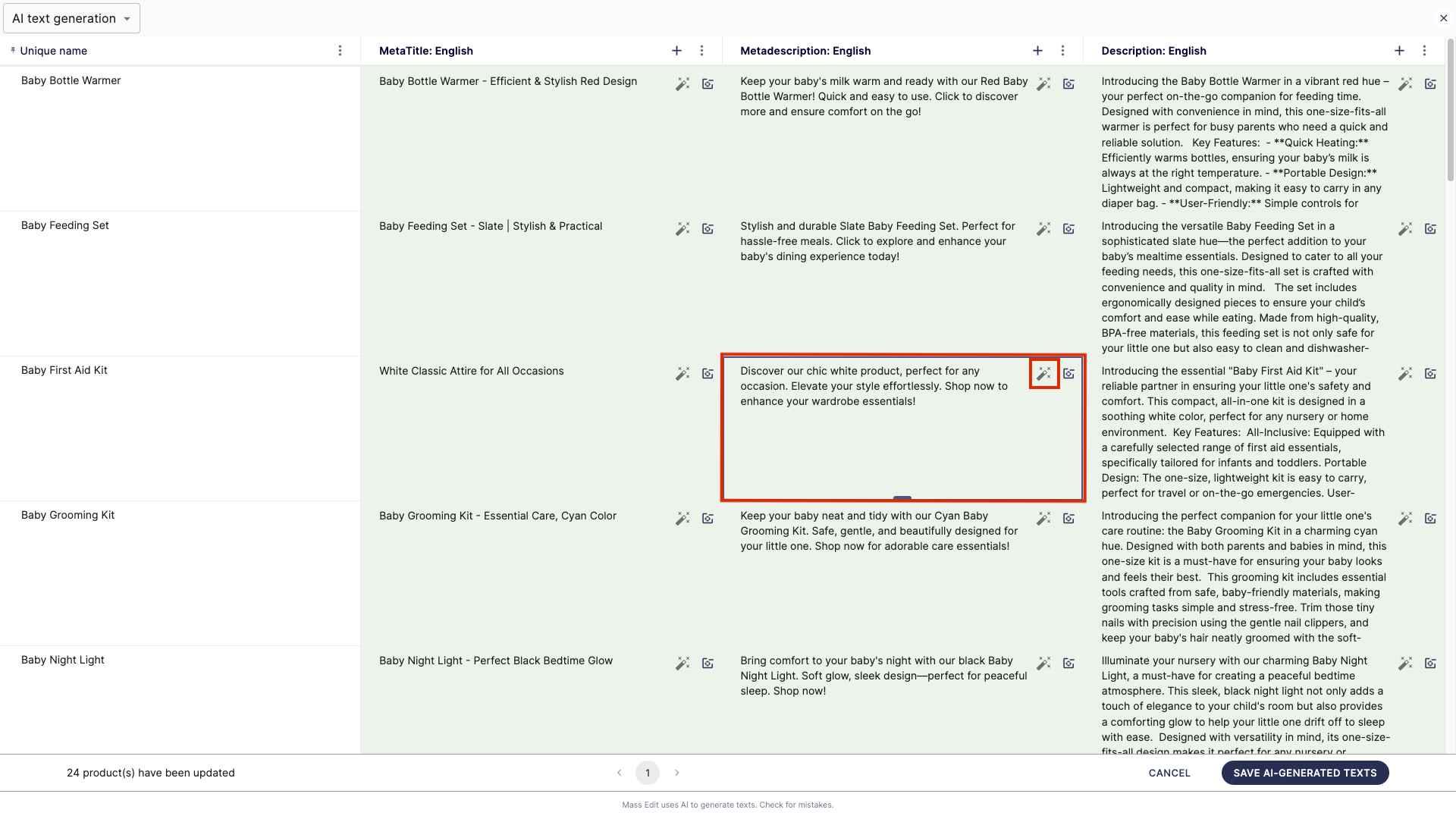
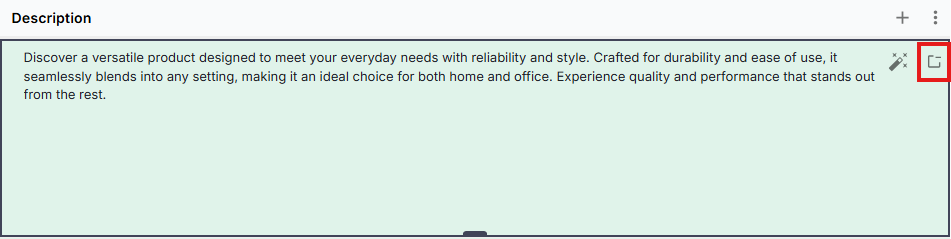
Remove generated text from any text field by clicking the Remove the field from this product button.
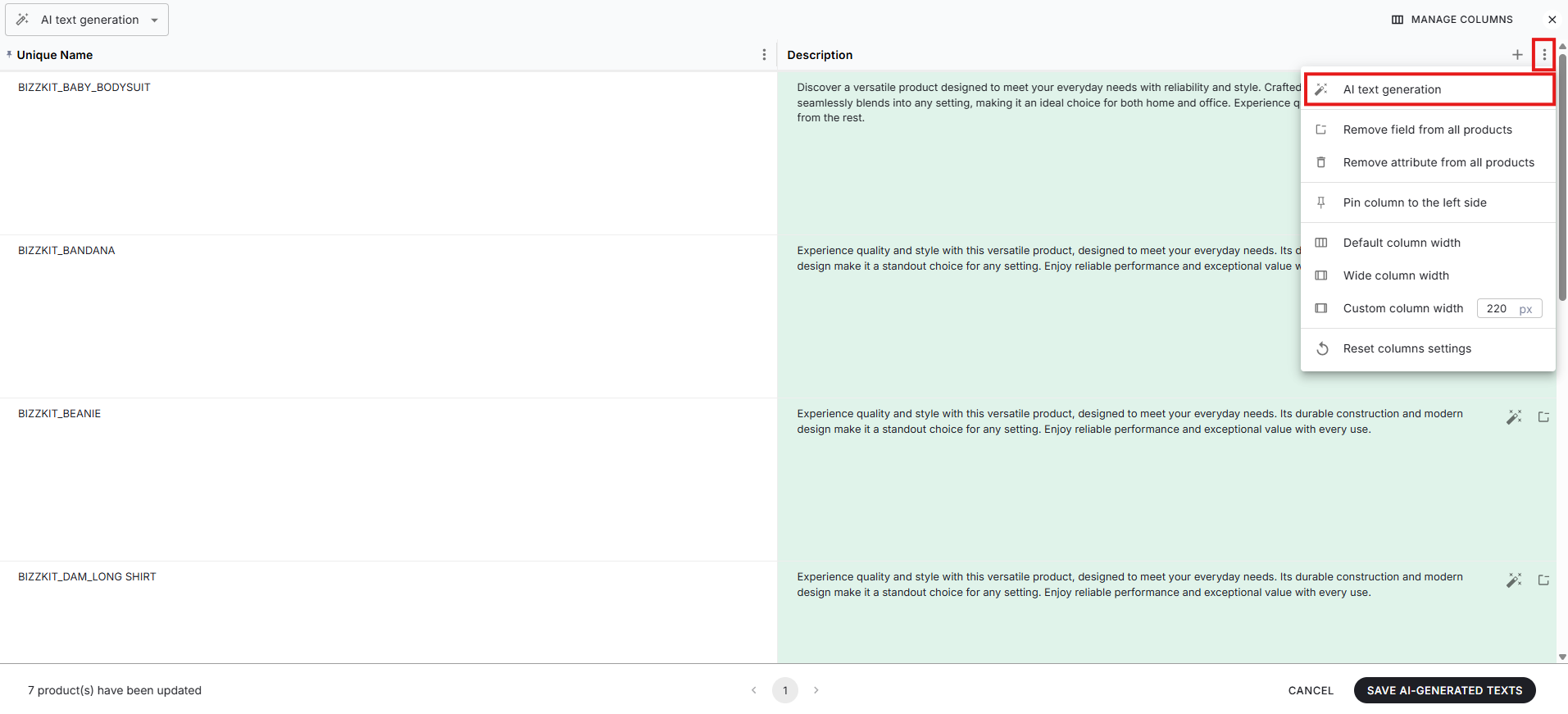
If you want BAIA to generate a new AI text for an entire column, you can use the "More options" menu located at the top of every attribute. Clicking on this menu presents several options, including the ability to generate AI text for the entire column.
Since there is no guarantee against errors when using AI to create content, it is essential to check for mistakes each time you generate text.
When you are finished generating, editing, and reviewing your AI-generated text, be sure to save everything to ensure the content is stored in the system.