How to configure attribute permissions
Attribute permissions allow administrators to grant roles write access to individual attributes on a product, when the role only has the View Product Catalogue permission. This guide walks you through adding attribute permissions to a role.
Prerequisites
- You must have the Manage Tenant application permission (or a permission that grants access to role administration).
Steps
1. Navigate to the role
- In PIM, go to Administration → Roles.
- Select the role you want to configure attribute permissions for.
2. Open the Attribute Permissions tab
On the role edit page, select the Attribute Permissions tab.

This tab lists all attribute permissions currently configured for the role. If no permissions have been added yet, the list is empty.
3. Add an attribute permission
- Click the + ATTRIBUTE button.
- In the dialog, search for and select the attribute you want to grant access to.
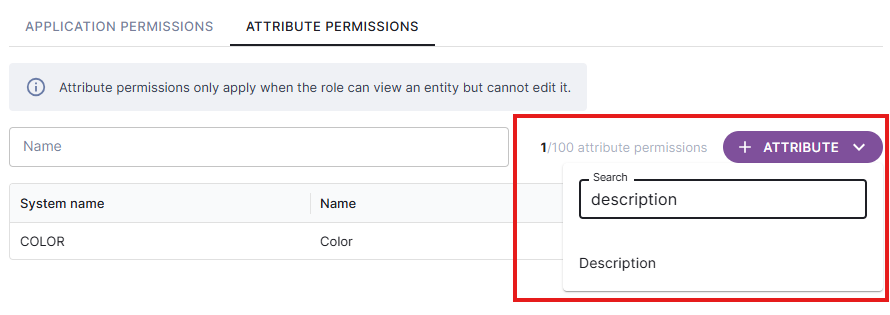
Repeat for each attribute you want to grant access to. A role can have a maximum of 100 attribute permissions.
4. Save the role
After adding all required attribute permissions, click Save to persist the changes to the role.